
https://controlcenter.invintusmedia.com/contentGroups
With the launch of Content Groups, your one Invintus streaming account can be used by multiple business groups within your organization, with each group only being able to interact with events in categories that are assigned to their group. This helps increase your users' ease-of-use within the control center by only displaying those events relevant to them, but also eliminates the chance that they will accidentally see or get access to modify other events outside of the assigned categories within their content group.
Video Overview
Creating content groups will limit the event listing results within your Events List and within the Agenda Logger.
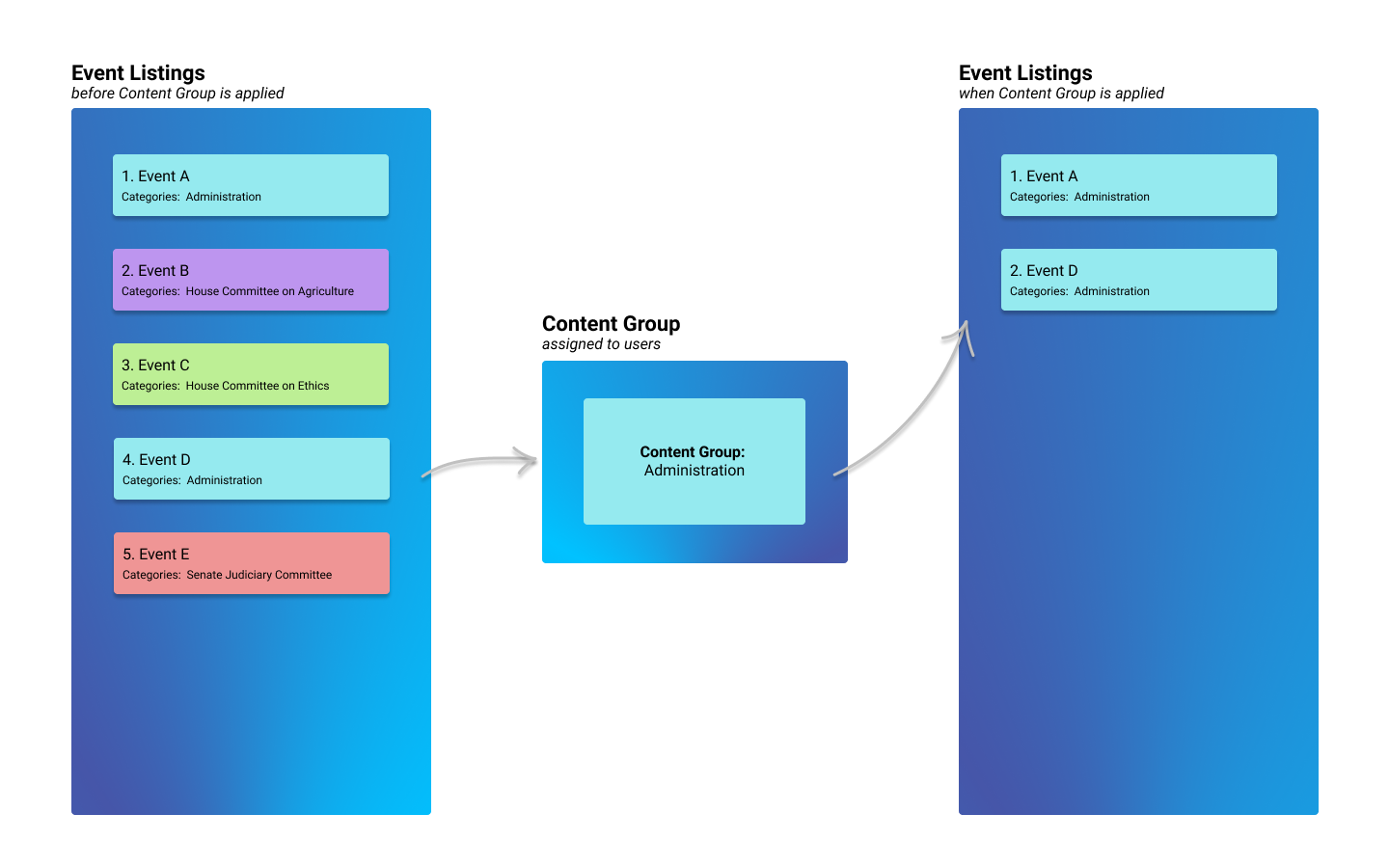
Creating Content Groups
- To Create a new Group click the blue "Create New" button.
- In the new view you will see two tabs: Settings and Users.
- In the Settings tab you can assign a Name and Description to your content group as well as all the Categories you want it to work with.
- The Category-Select Drop Down is Text Filterable so you dont have to scroll to find Categories.
- It's recommended you include a good description of your new Content Group, remember that other Administrators will need to understand reason why the Group was created.
- In the Users tab clicking "Add Users" and Search or Select those users who you desire to assign to the Group.
- When you're ready to create the group, return to the Settings tab and click "Save"
Editing and Removing Content Groups
- In the main view of the Content Groups you will see a table-like listing of each one you've created or will create.
- If you click the Name of a Content Group it will automatically take you to the Edit view.
- If you need to quickly assign users or remove a Content Group you can do so from the dropdown menu that appears when you click the "Gear" icon on the far right of the table row.