
The goal of the Event Agenda Logger is to provide our users a way to add Log items by event. A Log item is a collection of information about a topic that happens during a stream: a new speaker, a change of topic, a voting member, etc.
Example Use Cases:
- During a Gubernatorial Debate the speakers will take turns, topics change, and once your Event is published you're able to go in and mark each change in topic and speaker

- During a Committee meeting you may have at your disposal a sheet of Discussion points (or Minutes) which you can pre-populate your Agenda Log with so you can quickly bring them into the active Agenda Log

- For produced shows which may only cover two topics, it's helpful for the end-user to be able to quickly skip to the section they prefer to watch
TABLE OF CONTENTS
- Layout of the Agenda Logger
- Notes on Logging by Asset or by Event (Asset Tray)
- Filtering and Search
- Action Bar
- Attendees
- Global Tags
- Log Item Editor
- Event Tags
- Agenda Log
Layout of the Agenda Logger
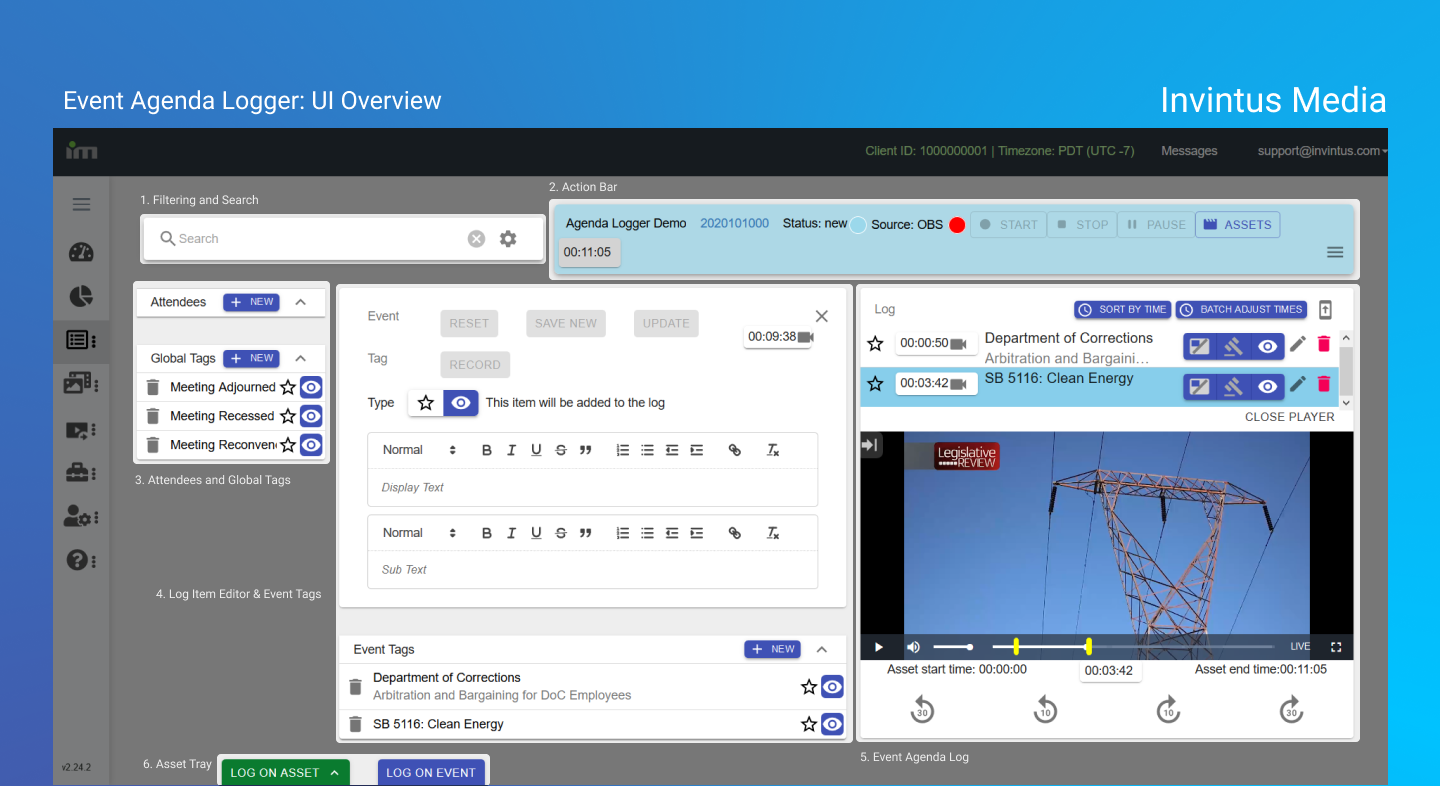
There are seven main sections to this view that flow Left to Right, Top to Bottom.
- Filtering search
- Action Bar
- Attendees and Global Tags
- Log Item Editor and Event Tags
- Event Agenda Log
- Asset Tray (requires your event to have Video Media - uploaded or recorded)
Notes on Logging by Asset or by Event (Asset Tray)
Conceptually there are two Modes of logging an Agenda.
The first mode is Log on Event which is the Default. This is the most common case: a recorded Video or Uploaded Video that will receive an Agenda Log.
However, some Users find that they have multiple Video assets that are incomplete recordings or assets generated when they use our Video Editor and will need to add Log Items to the desired Video. This mode is called Log on Asset. You can tell if it's active if the blue "Log on Event" button appears - clicking this button will return you to the Log by Event mode.

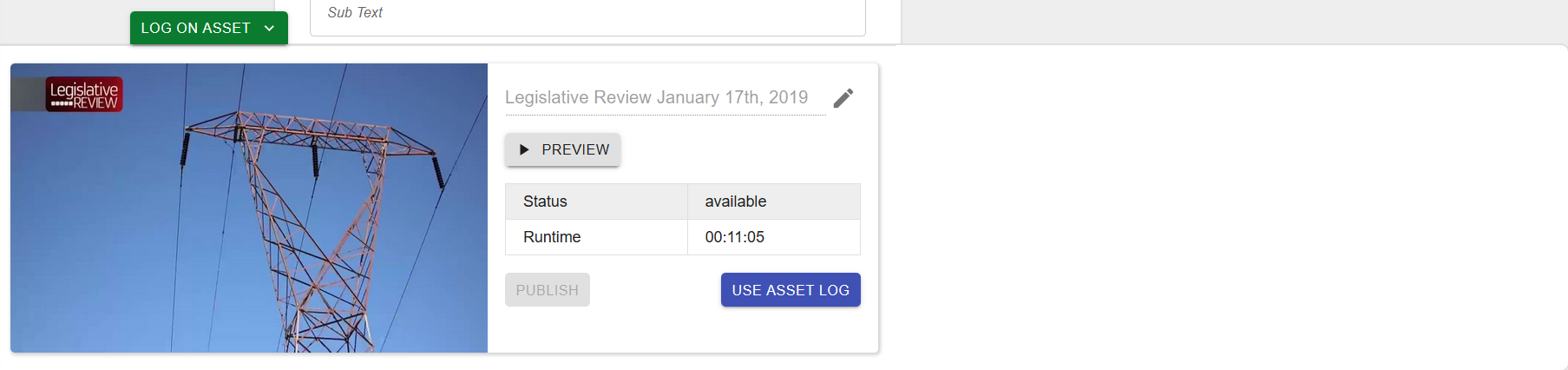
In both cases, when Video media is available on your Event, a green button will appear on the bottom of the Agenda Logger view entitled "Log on Asset". When clicked, this button will bring up the Asset Tray, horizontally listing all of your Event's media Assets.
An image of an Open Asset tray with no Assets Selected:
Note:
To close the Asset Tray click the "Log on Asset" button again.
Filtering and Search
As you generate more and more tags either on an Event or in your Global Tags over time, it's important that you're able to find what you're looking for quickly.
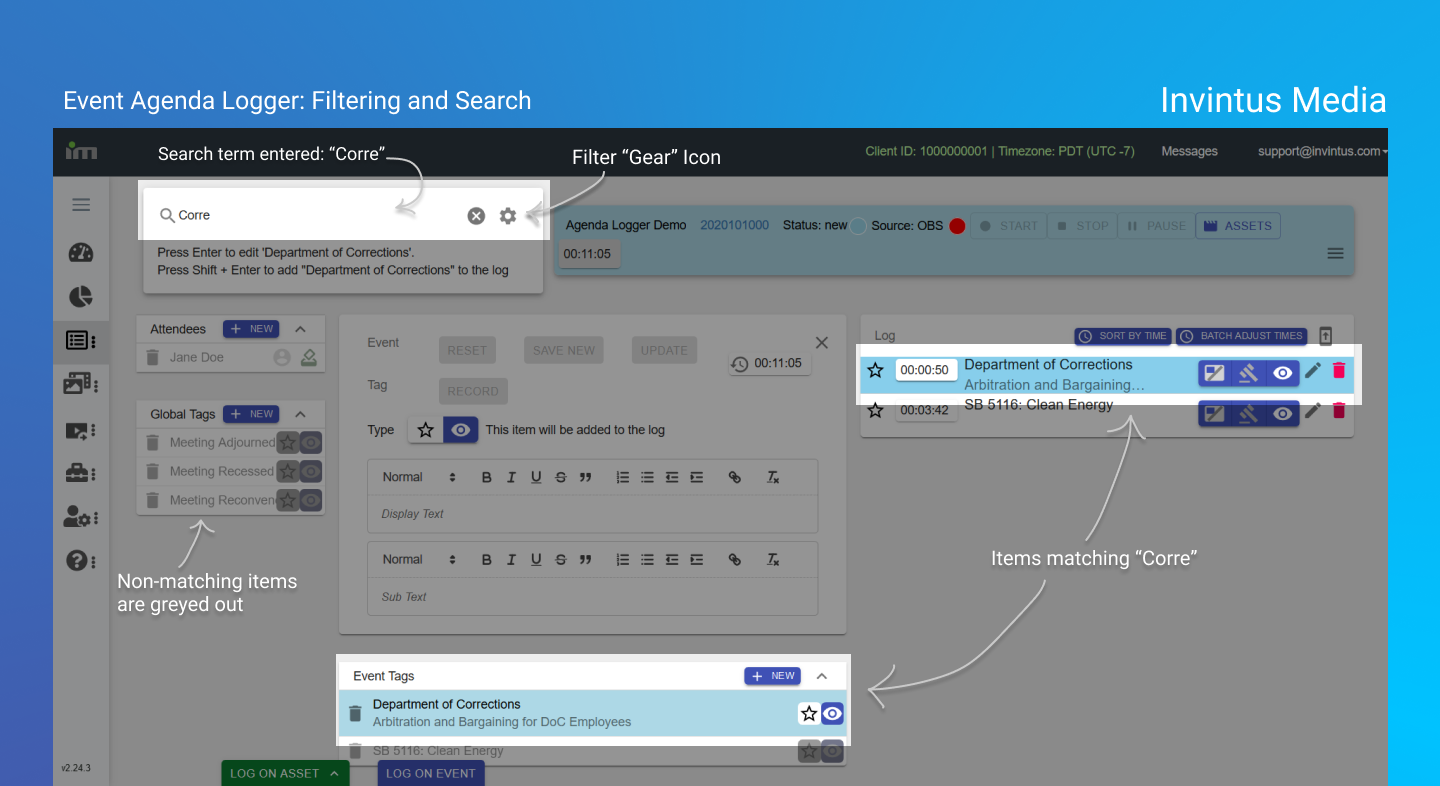
The Search Filter is a tool that affords you to do so in two ways while highlighting matches in all containers containing Log Items:
- Text matching (Search)
- Filtering for narrowing results (Attendee Name/Title/etc, and Log Item Text and Subtext)
- To activate or deactivate a filter you click the "Gear" icon on the far right of the Search box and toggle the switches by clicking them.
The image below shows an example of what Highlighted Items look like when a match is found in the Log Item Text:
Action Bar
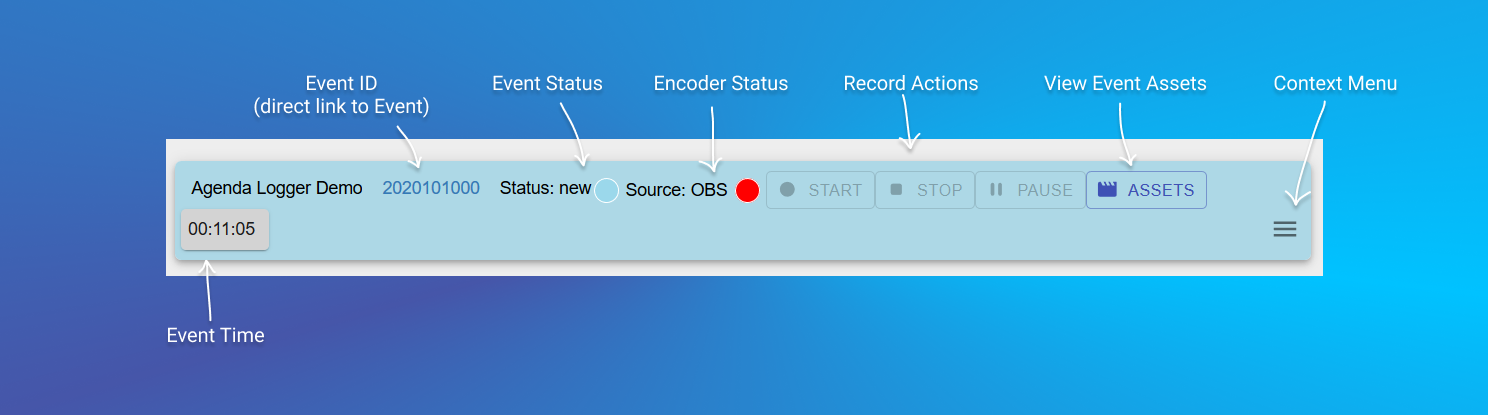
The Action bar is both overview of your Event (Status, Encoder Status, Event Duration) and the actions you can make on the Event (Stop/Start/Pause).
Note:
You can go directly to the Event by clicking on the Event's ID.
The Event Status has four colors denoting its Status:
- Light Blue: New event (no assets)
- Dark Blue: Event has Recorded or Uploaded Media
- Red: Live
- Orange: On Break/Paused
The Encoder Status has two colors denoting its Status:
- Red: Offline
- Green: Online
There are further actions you can perform from the action bar that appear when you click the Context Menu (hamburger Menu Icon):
- Opening a Player for the Selected or Default Video Asset
- Direct access to the Video Editor
- Help modal (Overview of Icons and Keyboard Shortcuts)
- Direct link back to the main Events List
- Importing Logs from a CSV file
Attendees
If the Event you're covering - be it a committee meeting, a city council meeting, etc. - have known Attendees, you can pre-populate your Attendees group with them.
Note:
Attendees cannot be established in the Global Tag Manager and must be established by Event
Attendee Log Items, unlike others, have special fields associated with them:
- Name: First and Last (required)
- Represents: Whom they represent (which governmental body, etc.)
- In Attendance: whether they are present for the proceeding
- Voting Member: designates whether they are able to Vote on the matter at hand
Note:
Attendee Log Items cannot be marked as Private or as the Current Active log Item in the Log Item editor; to accomplish this you must first add them to the Event's log and click the "Star" (for current Item) or the "Eye" (private) icons respectively.
Global Tags
These come directly from the Global Tag Manager. They represent common actions Events have (Meeting Adjourned/Recessed/Reconvened, Private Notes about committees to keep in mind, etc.) To view the Global Tag Manager, go to
- https://controlcenter.invintusmedia.com/agenda
- then Click "Admin View"
Note:
If your account in Invintus is not that of Administrator (or a sufficiently elevated Security Group or Content Group), you may not see all Global Tag content.
In order to bring a Global Tag into an Event's Log you click it to bring it into the Log Item Editor then, if no further edits on it are needed, click the blue "Record" button.
Log Item Editor
This is where you'll edit your Log Items. There are four distinct parts to this utility:
- Actions:
- Save New: used for staging Log Items in the Event Tags section
- Update: used for committing edits to existing Event Log Items
- Record: used to save new Event Log Items
- Reset: to clear the Event Log Item form
- Set to Event Time
- Type:
- Current or Non current: this is denoted by the "Star" icon. If it is not clicked, the agenda Item will not be set and highlighted as the current item. If it is checked it will.
- Private: denoted by the "Eye" icon, if it is not clicked (default state) the Log Item will be publicly viewable. If it is clicked it will be considered an internal Note and therefore not appear in the Embedded Player's Agenda Log for End Users.
- Display Text and Sub Text: The Display text is the main text the End User will see. The Sub Text can be thought of as a complete description of the Log Item.
- Cancel: Clicking the "X" icon on the top right of this form will clear all fields.
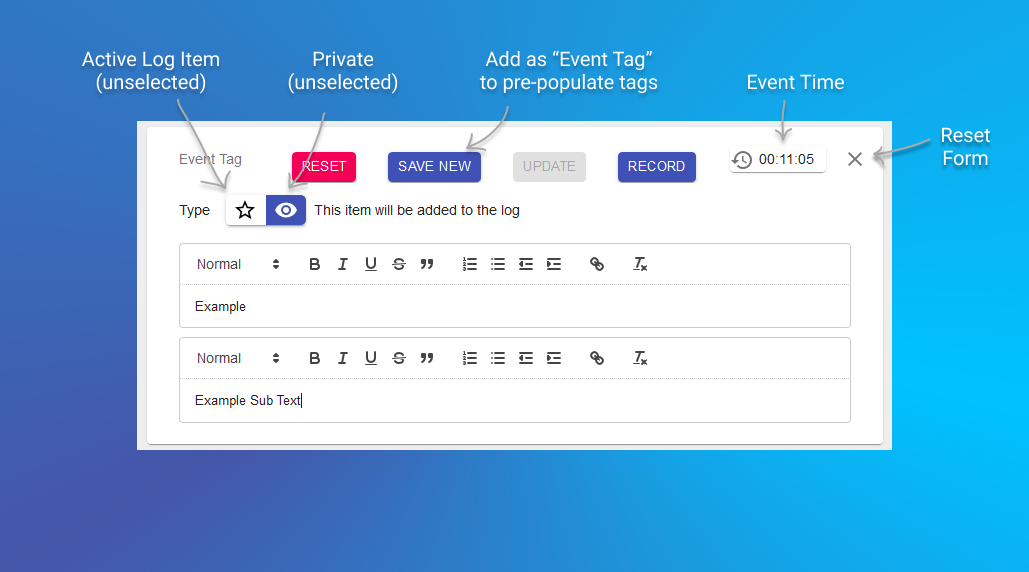
Note:
While Display Text and Sub Text inputs aren't limited by character count, the Display Text is truncated with an ellipses if it's too long.
Event Tags
These are used as pre-populated Agenda Log Items (created with the "Save New" button within the Log Item Editor)
They can be rearranged via drag-drop functionality but if you want them to be brought into the active Event Agenda Log you must first click them then click the "Record" button within the Log Item Editor.
Example Use Case:
If a House committee has published an internal document of Minutes prior to a hearing, staging these within the Event Tags is a great way to ease the burden of tracking everything while the Event stream is live.
Agenda Log
This is what is ultimately to your Embedded Player instances - assuming those instances have Agenda Log Views enabled.
Within this section you can perform actions such as:
- Rearrange items via drag-drop functionality by left-clicking a given item and dragging/releasing it where you desire it to be
- Mark the item as a Vote
- Quickly edit the Time-code of the Log item relative to the Event time
- Mark the item as the one being currently discussed on the Stream
- Bring the item back into the Log Item Editor via the "Pencil" icon to change the wording of the Display Text or Subtext.
Clicking a Log Item will bring up a contextual view that allows you to select a preview of the Event's stream. If the Event is Live you can select "Encoder Preview" or "Live Stream". The difference being that the Encoder Preview is closer to real-time than the Live Stream which is what the end users see.
Note:
Additionally, our application will automatically highlight the upcoming and current items within a range of 5 seconds so you can keep track of where you are in the stream.
Agenda Log: Sort by Time
Clicking this button at the top of the Agenda Log will sort all items by time (Descending)
Agenda Log: Batch Adjust Times
Here you can adjust the time-codes of all (or some) items by a static amount of Seconds. If you don't wish to adjust some items you must uncheck those items.
Clicking the "Adjust Times" buttons will commit these changes.
Note:
Our system will adjust these times individually and you may see times changing while the application works with our servers. Once the process is complete the modal will close and your log will show the newly adjusted Log Item time-codes.