
Player Preferences Workflow
Player preferences allow you to configure how your video player is presented to your viewers, which event-supporting metadata/information you would like to display (documents, agenda markers, event titles and description, categories, etc.), and options for sharing, posting to social feeds, and displaying moderated chat.
Each player instance is backed by an associated preference. Your player preferences can be thought of as different ways to display your event video and related information. Ultimately, the question is "how do you want to display your content?"
By setting up one or more player preferences, you can personalize your video player, and supplement your event video with extra information and functionality including:
- Event Title
- Event Date and Time
- Event Status (Live or otherwise)
- Event Description
- Assigned Categories and/or Location
- Video Sharing, including Link sharing or video Re-embedding
- Twitter Feed Display
- Moderated Chat
- Agenda Log (meeting minutes)
- Document Listing and Viewer
- PDFs
- HTML documents
- Images
- Downloadable files (docx, excel, CSVs, etc.)
- Linked URLS (as the browser allows)
- And more...
Player Preference options
There are three ways player preferences are interpreted which are as follows:
- You don't create any player preferences (the default case)
Our system handles this option by providing a default Player Preference which provides static/predetermined settings.
- You create and save your first player preference.
This preference will automatically be assigned as you default player preference. Any events you embed by copying and pasting your player embed code will take in this Preference's settings.
- You create and save multiple player preferences
This allows you to assign a player preference to any event in the 'Embed & Share' tab in the Events List (/events). You can set one of your player preferences as your "default" preference for any new events.
Player Preference Manager
https://controlcenter.invintusmedia.com/manage/player/edit
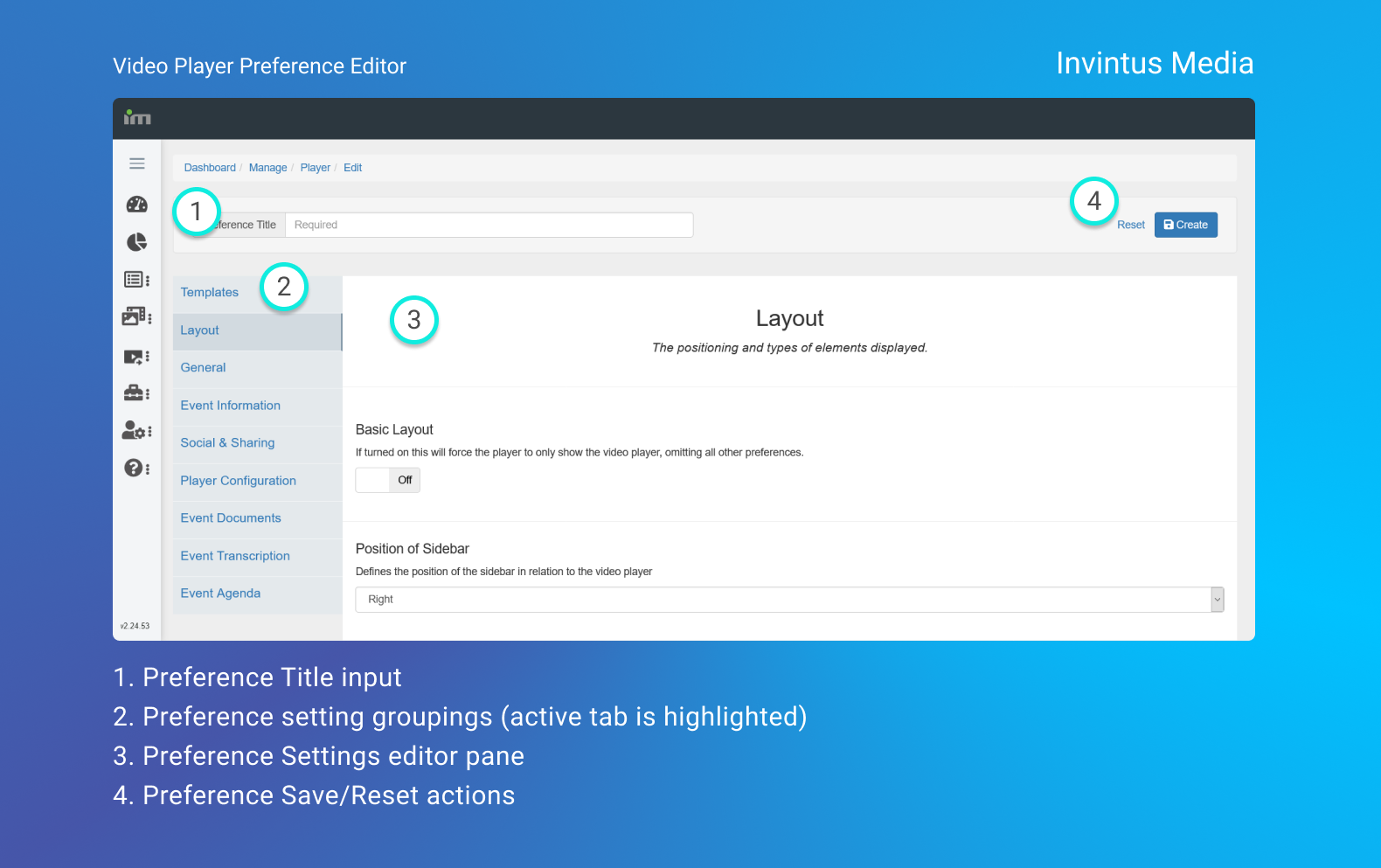
The Player Preference "Manager" page shows you a listing of all the Player Preferences you've created. The only actions available to you on this page are to:
Create a new Preference
**Note - this will be the only available option when you first come into the Player Preference section**Set a Preference as Default
Edit an existing Preference
Delete an existing Preference
While the Create/Edit/Delete actions are self-explanatory, the Default option needs attention.
Default Embedded Media Player
When working with multiple player preferences, you may find that in certain circumstances it would be best to provide a video-only player, whereas in other circumstances you may find that it would be better to provide not only the video, but also the event title and description, and an associated event- or client-specific Twitter feed.
If you desire that all events follow a certain default layout/functionality, you can simply assign a player preference as "default" from the Player Manager listings page. New events or existing events that have not had a specific player preference assigned will inherit your new default preference. Any events you assign (or have assigned) to a different player preference will retain those preferences.
Player Preferences Options
Layout
Basic Layout
This will force the Player to only show the video portion, omitting all other preferences.
Position of Sidebar
This can either be Left or Right. The sidebar can only contain a few tools (each within their own Tab in the sidebar):
- Twitter Feed
- Moderated Chat
- Agenda
General
Provide Video Download Link
Provides a link to the MP4/video file of the Event's Published Video Asset (if available).
Prompt of Copyright information
If set, this will prompt the user to accept a Legal Notice for downloadable audio if your Download Link setting is turned on.
Event Information
Event Date Format
Tells the Video Player application how to format and display the Date/Time of the Event.
Show Assigned Categories
Will display the assigned Categories of an Event in the Event Information space (if any are assigned).
Display Event Description
Will display the Event's Description within the Event Information space.
Display Event Location
Will display the Event's Location within the Event Information space (if assigned a Location).
Social & Sharing
Sharing
If turned on this will provide a Sharing tab for embedding and linking.
Provide Code to Embed
Provides an embeddable html/javascript code snippet to the End User allowing them to embed the video player anywhere on their website(s).
Host URL
Specify your own Host URL to replace our default one in the URLs generated in the Share Tab.
Display a Twitter Feed
When set this will show a Twitter feed based on either a User Timeline OR a Hashtag feed.
Twitter Feed Positioning
Can be set to either appear in the Sidebar or Below the player (in a tab group).
Facebook Button Link
If set this will show a Facebook button that, when clicked, will open a new tab to the Facebook URL set.
Twitter Button Link
If set this will show a Twitter button that, when clicked, will open a new tab to the Twitter URL set.
Player Configuration
These option pertain to how the Video Player itself behaves and what controls it should provide.
Media interstitial for Offline Events
This setting allows you to assign multiple Assets from your Global Media Library to appear in the Video Player when your Event isn't Live or Published. You can have either one image/still or one or multiple videos play in a loop.
Media interstitial for 'On Break' Events
The same as Offline Slates, but will only appear when your Event is Paused (On Break).
Playback Speed Controls
This provides a pop-up control in the Video Player which allows users to speed up or slow down the rate of Media playback. (Only applies to Published Events)
Event Documents
Document Mode
If turned on this will show the Media Player alongside a PDF viewer which inherits it's content from the given Event's document assets.
Show supplemental Documents
List Non-Video Media (.pdf, .xls, .docx, .png, etc.) assigned to the given Event
Event Agenda
The Event Agenda will display time-based video markers to aid your users in finding and jumping directly to portions of the video in which they are interested. You need to use the Agenda Logger to create these markers while your event is live, or after your event has concluded.
Display Event Agenda
Show the event's agenda markers in a tab around the player.
Display Agenda On Live Events
Show the agenda alongside the event before it is published. (Does not impact display of the current item).
Display Current Item
Shows the currently-marked Live Agenda Index in a callout below the Player
Agenda Positioning
Can appear either in the tab group below the player or in the Sidebar.