
Embedding your Player
There are two available methods to embed the Invintus Media video player into your website. The global embed method allows you to create one page on your website (e.g. https://www.yourdomain.com/videoplayer/) on which all your videos can be played (while also retaining their associated player preferences), while the event embed method allows you to embed individual event players on individual pages on your website (e.g. https://www.yourdomain.com/events/your-event-title/).
Global Player Embed
The global embed method is best used when you want one or more pages on your website to display any of your events. This method is most commonly used for clients that are also using the Invintus channel listing functionality. If you have multiple player preferences for your events that are radically different (e.g. one video-only player preference, and one content-rich player preference with a document viewer, twitter feed and moderated chat), you may want to set-up multiple player pages by just repeating this process on more than one page.
This global player embed method requires that all links to this page include a query string in the form of:
?eventID=intended-eventID
This is accomplished in one of many ways:
- by an embed of the Channel Listing with the "Event link Hostname" preference set to your Page's URL
- by your own application utilizing our API that establishes HREFs following the query string format above
- By using the query string format above in any other link
Global Embed Code
To embed the global player your own webpage, you'll simply paste the following code snippet in your HTML.
**Note: Please be sure to enter the correct ClientID in place of YOUR_CLIENT_ID **
<div class="invintus-player"></div>
<script>
!(function (src, cb) {
    var s = document.createElement('script');
    s.src = src;
    s.async = true;
    if (s.readyState) {
        s.onreadystatechange = function () {
            if (s.readyState == 'loaded' || s.readyState == 'complete') {
                s.onreadystatechange = null;
                cb();
            }
        };
    } else {
        s.onload = function () {
            cb();
        };
    }
    document.head.appendChild(s);
})('//player.invintus.com/app.js', function () {
    Invintus.launch({
        "clientID": YOUR_CLIENT_ID
    });
});
</script>
Event-specific Embed
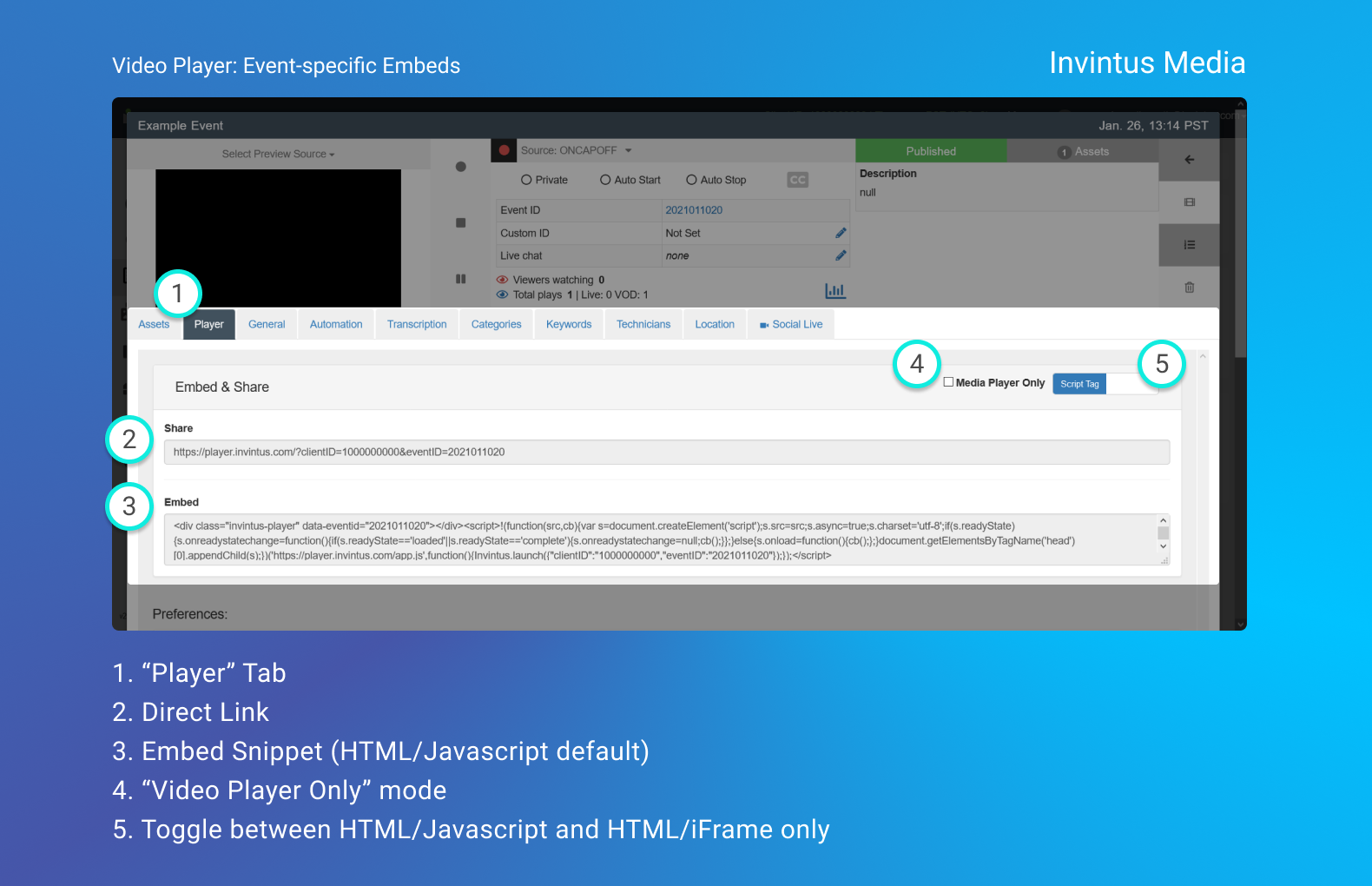
Within the Control Center, the event-specific embed method for the Invintus video player allows you to embed a specific event onto a specific page on your website. You may choose to do this if you want to make your event "Private" (which hides your event from your channel listings) or if you have setup a special page for an upcoming event, such as an annual conference or a live fundraising event.
To find the event-specific embed code, go to your event's Player tab in the event edit view and copy the Embed markup in the "Embed & Share" section. The event-specific embed method supports either our standard Javascript embed (recommended) or an Iframe embed capability. You can toggle the embed method via a toggle on the top-right of the Player Tab).