
Getting your first Channel Listing setup is a two-part process: First, you Create your listing preference and then second, you Embed the listing onto your website. There are two tools for Creating and Managing your preferences:
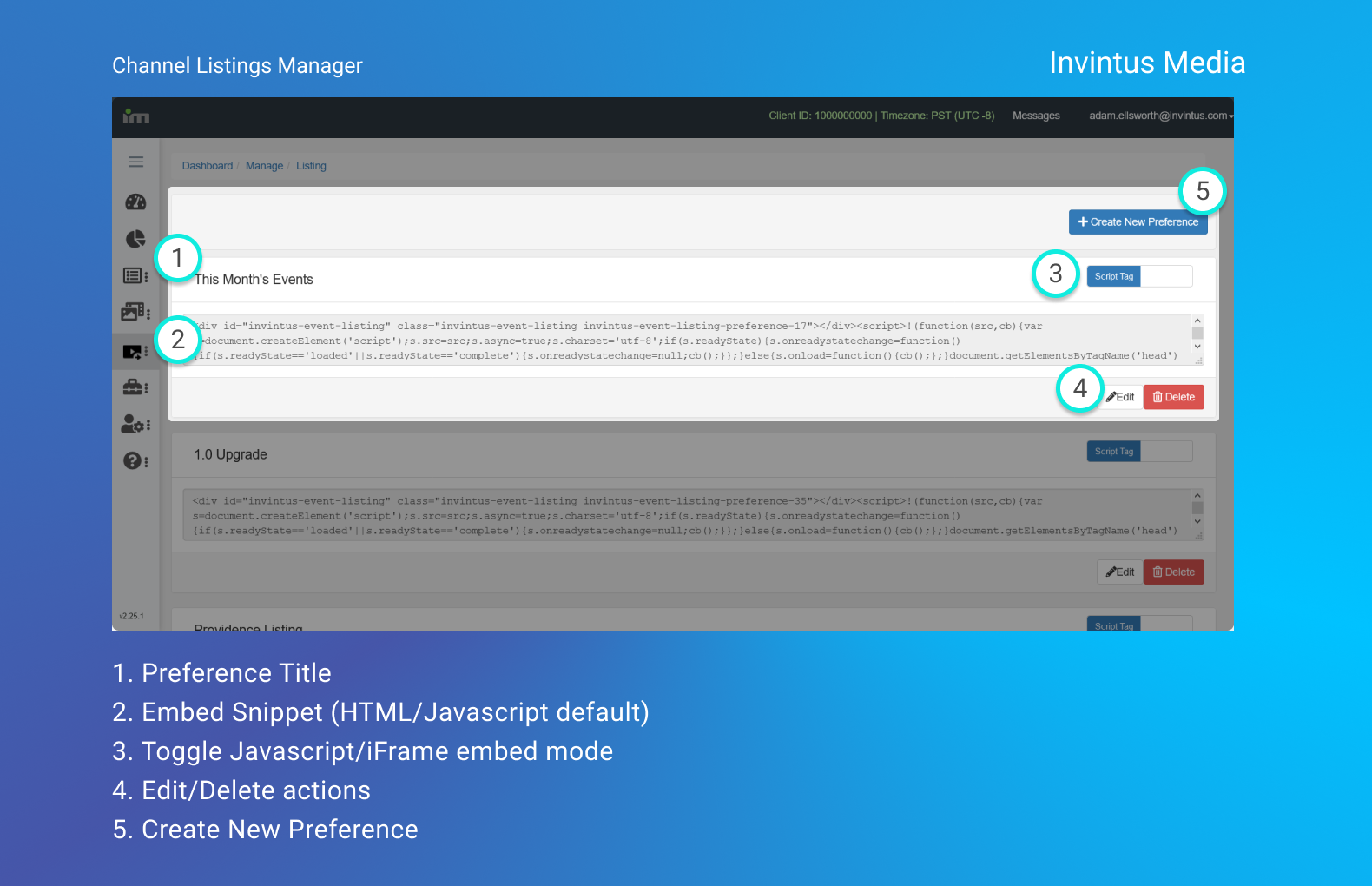
Channel Listing Manager:
This is a list of all of your existing Preferences, and where you can copy the Embed snippet and delete or set as default any of your Channel Listing Preferences.
Editor:
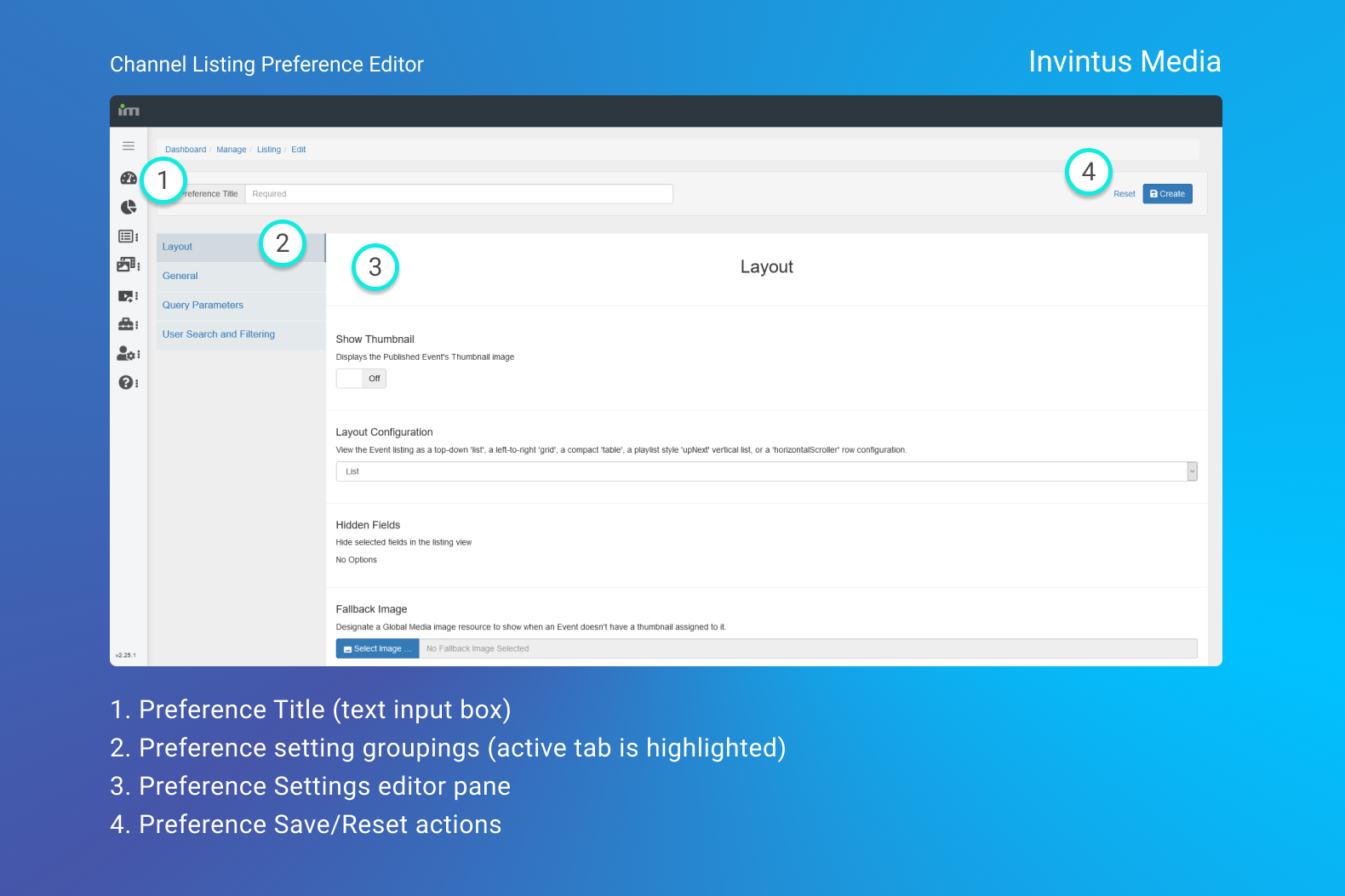
This listings editor is where you will initially create your specific channel listing and its preferences, and also where you can update these preferences in the future. It has four tabs/collections of preferences:
Creating a new Preference
https://controlcenter.invintusmedia.com/manage/listing
To create your first Channel, visit the Channel Listing Manager page via the link above and click the "Create New Preference" button at the top right of the page. This will bring you to the Preference Editor.
As the Channel Listing is an application that will request your Events within date ranges, by statuses, and provides End-user filters where desired, there are a few base use-cases we see our Client's using.
Below are some topics and questions you should keep in mind while creating your first Channel Listing.
- Able to span Archived (Published) Events, Upcoming Events, and Live Events, it's important you first know what you what your Channel Listing instance will show.
- As we provide five different Layout options, it's good to also figure out which will best suit your needs
- Will you want End Users to be able to search around your non-private Event's and filter them beyond the default parameters provided by the Preference you establish?
Example: Archived Events
One common use case for the Channel Listing is displaying a paginated list of Archived (Published) Events on your website.
We can do this by first establishing a few basic rules in your new Preference.
Date Range
Archives, because they can go back Months and even Years into the past, will need a suitable date range.
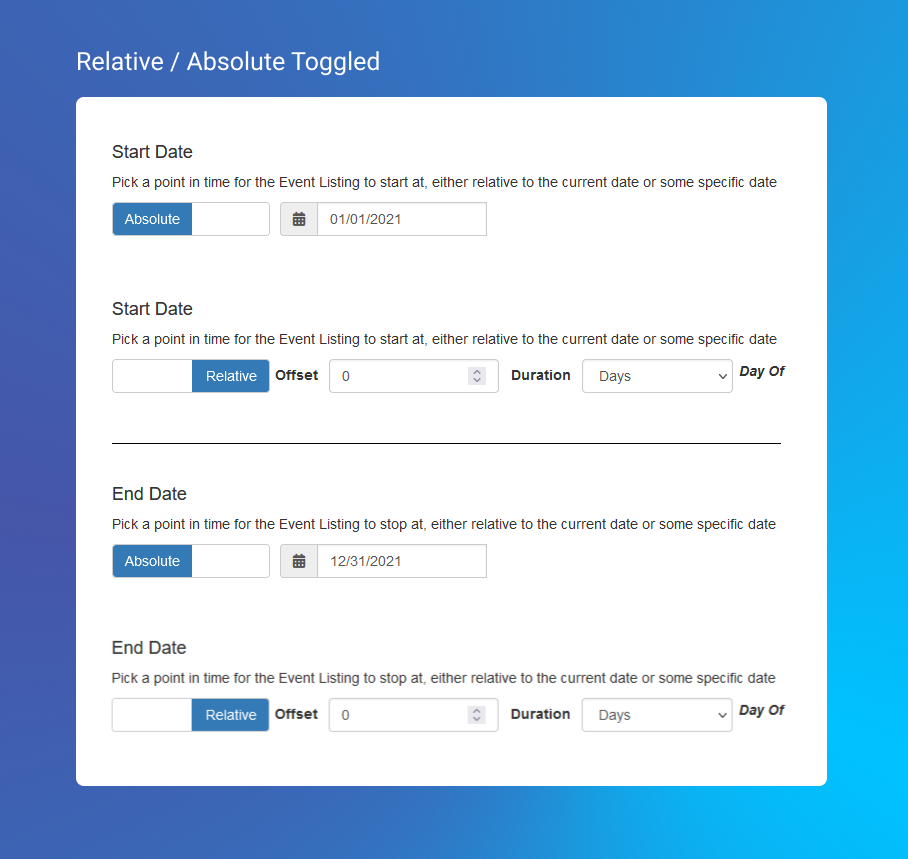
To adjust the Date Range for your Listing, click on the "Query Parameters" tab on the left of the Editor. While we go into Absolute vs Relative date ranges in a later article, for this example we'll make sure the toggle Uses Absolute Date is checked to the On position. This will ensure that the Date Ranges requested will always be the same when the Channel Listing loads.
Event Status
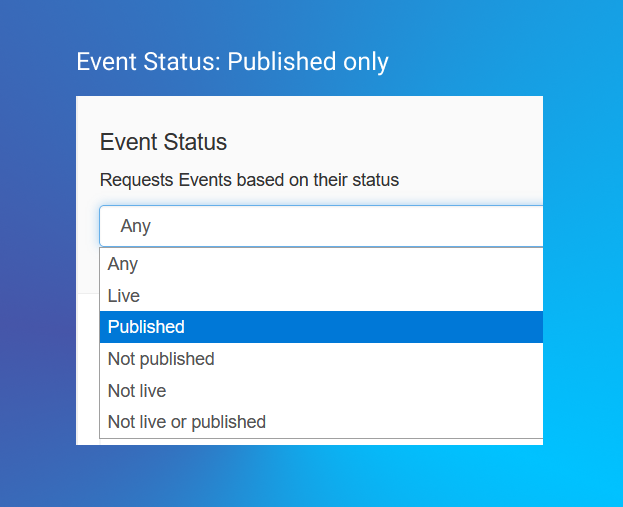
We also want to make sure that the Event's your Channel Listing instance requests are not Live, On Break, Publishing, or anything else that isn't Published.
To do this, you can scroll further down in the "Query Parameters" to the Event Status section and select Published from the Select input.
Layout options
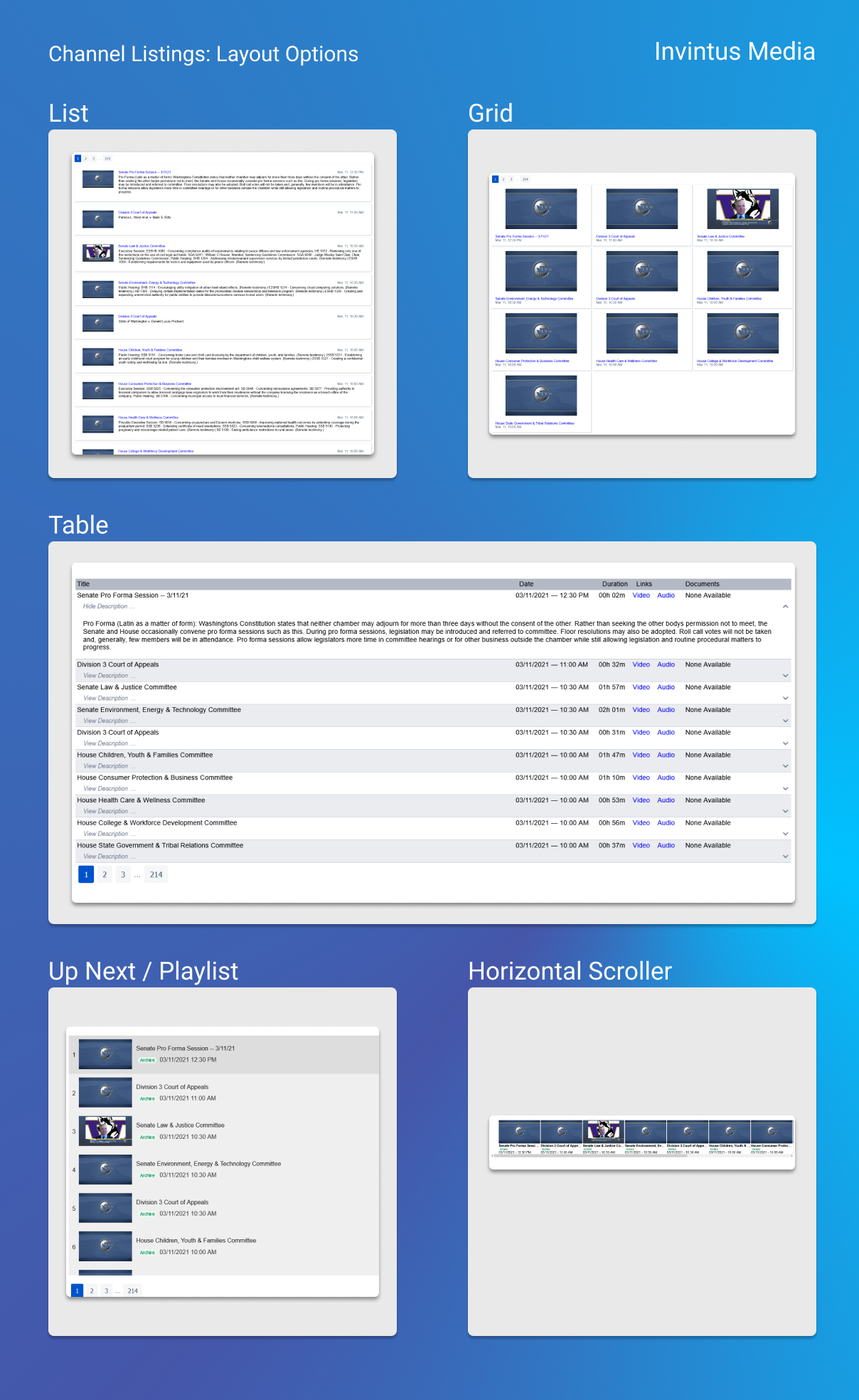
Now we need to decide how we want it to appear. We provide Five options which appear as follows:
Saving your Preference
Now that we have the basics of an Archive-only Channel Listing, you will need to enter a Preference Title at the top of the Editor page and then click the "Create" button on the far right.
Note: if you choose the Table layout, this preference title WILL be displayed.
Embedding
In the Next document "How to Embed" we go over how to get your Embed code snippet and some considerations for the different modes of Embedding.