
Overview
The Channel Listing editor is broken up into tabs which you can find on the left side of the page. Each Tab contains a group of settings, and in this document we go over in detail what each setting does.
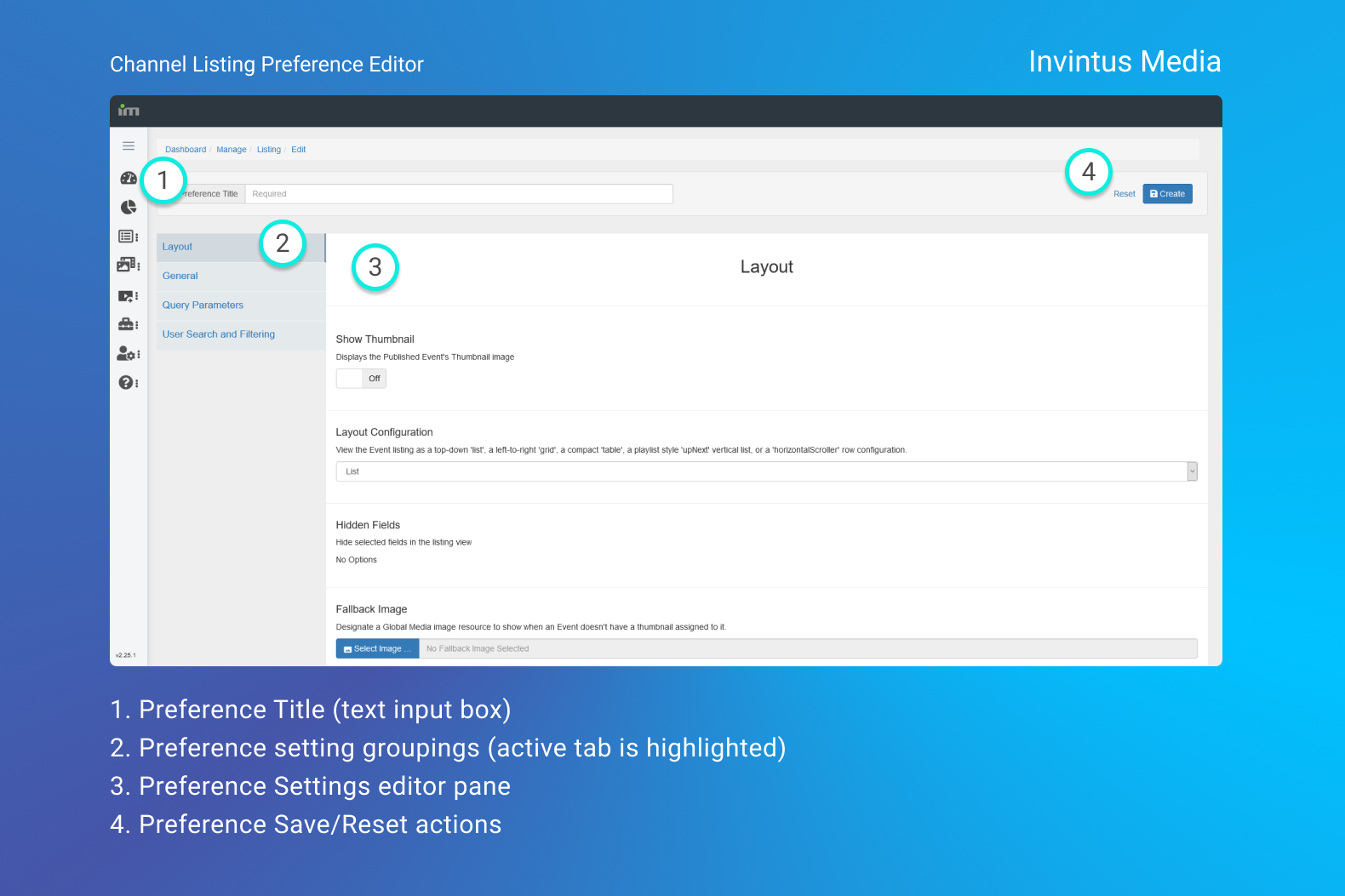
Channel Listing Editor Tabs
Below are all the groups of settings under their respective Tabs.
Layout
Show Thumbnail:
This will display the Published Event's Thumbnail image if there is one.
- For unpublished Events this will never show and will default first to the Fallback Image if one is chosen, or a placeholder icon if it is not. (Additionally, this only applies to the following layouts: List, Grid, UpNext, and HorizontalScroller.)
Layout Configuration:
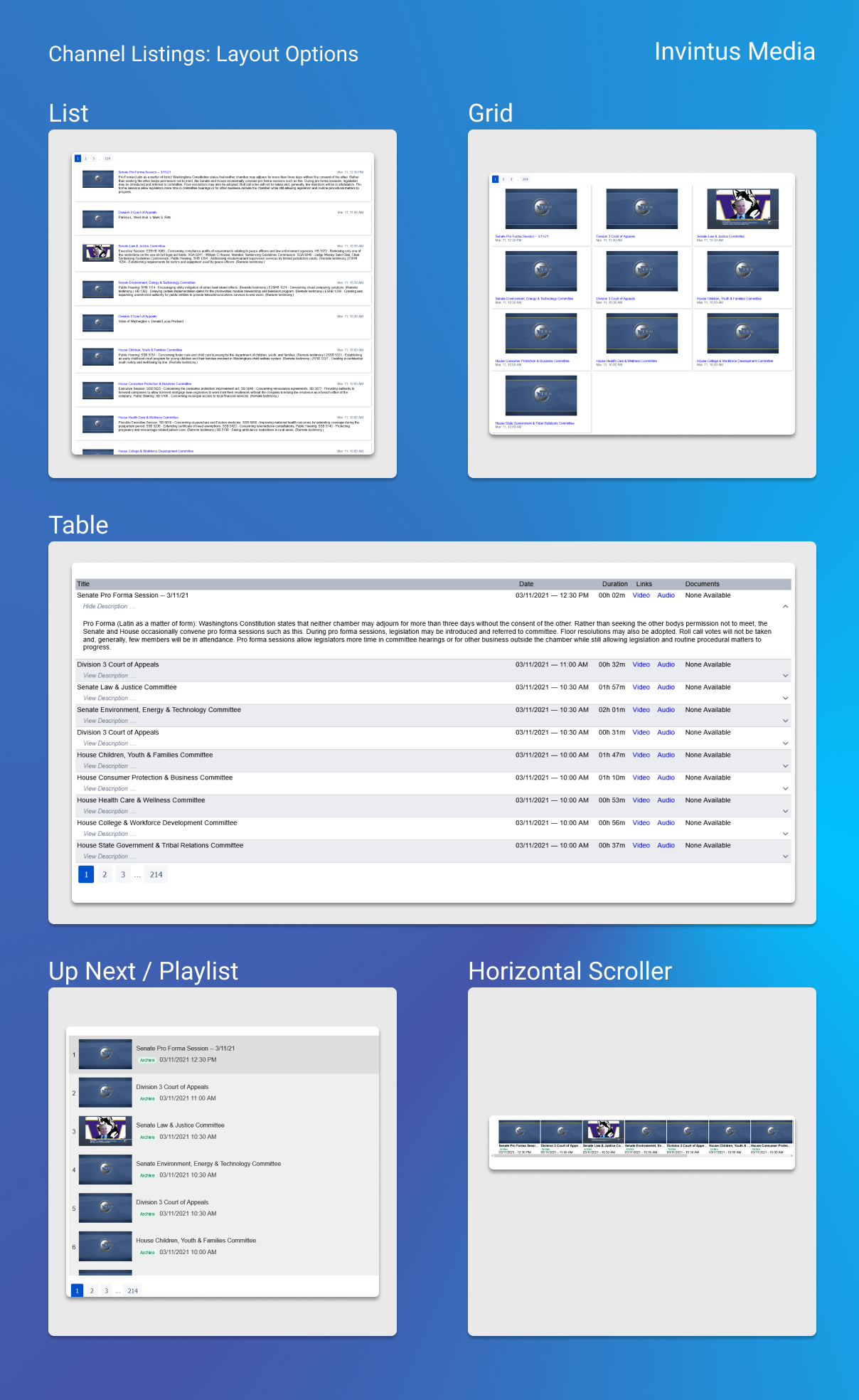
This tells the Channel Listing to layout in the desired way (reference the image below for what each Layout option looks like).
Fallback Image:
This gives an image to unpublished Events as they don't have thumbnails by default.
Note: These images are derived from your Global Media Asset Library
General
Event Order:
Either Ascending or Descending by date.
Descending (the default) will list Events starting at most recent first while Ascending will list them from oldest first within the Listing's query.
Events Per Page:
Denotes how many Event's should be listed per page.
Event link Hostname:
When you are using the generic Player Embed setting this link hostname to the page that Player is on. Clicking a link within the Channel Listing with this set will pass the correct Query String parameters to the Player so it knows which Event to load.
Query Parameters
These pertain to what Events the Channel Listing will fetch by Date range, Category, Event Status, etc.
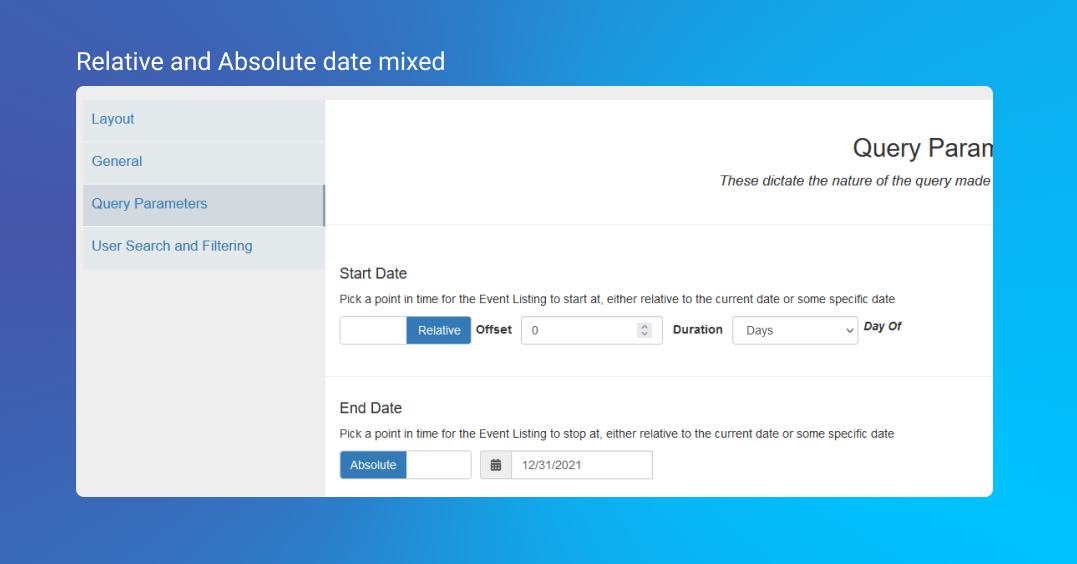
The Channel Listing works by asking our Services for a complete list of Events within a certain Date Range. That Date Range can be unchanging and Absolute (i.e. from January 2020 to March 2020), as a range Relative to the current date (i.e. relative to when the Channel Listing is loaded and our Services queried; if this happens to be December 25th, 2020, then the range will be relative to that day), or a mix of both Relative and Absolute.
Use Absolute Dates Only:
Use Absolute dates (e.g. January 1st, 2018 to January 1st 2021 - three years of Archival content).
Absolute Start Date and Absolute Stop Date:
The Start and Stop Dates (MM/DD/YYYY) the Events should be requested between. Any events outside of this range are omitted.
Relative Start Date and Absolute End Date, or, Absolute Start Date and Relative End Date:
When "Relative" is selected for the Start Date, the Relative date matching will be the default setting. Both of these controls are set as Offsets either Before (negative) or After (positive) the current date and can be calibrated in spans of Days, Weeks, Months, and Years.
And, likewise as above, when "Absolute" is selected you can only enter a date in the form MM/DD/YYYY
Note:
When mixing Relative and Absolute dates, it's important to know that in the case of Relative Start and Absolute End dates the Start date is liable to eventually overtake the End date.
We therefore suggest you use Absolute for the Start Date while keeping the End Date
Event Status:
Denotes which Event Statuses are meant to queried.
- Any: All Events
- Live: Only Live Events
- Published: Will only show Events that have been manually Published
- Not Published: Will only show Events that haven't been Published (Available, New, and Live)
- Not Live: Will only show Events that have a status of Available, New, Publishing, and Published
- Not Live or Published: Will only show Available and New Events
Event Categories:
This will restrict the request by all selected Categories - all Events that do not have the selected Categories here will not show.
Event Keyword:
Will only show Events who have the given Keyword assigned to them.
Event Location:
Will only show Events who have the given Location assigned to them.
Event Title:
Requests Events where Titles match or contain the text provided.
Event Description:
Requests Events where Descriptions match or contain the text provided.
User Search and Filtering
This controls whether or not the embedded Channel Listing will provide a set of Filter Control for your End user.
End-User Event Filtering:
Tells the channel listing to either omit or provide the available Filter controls
Search by Title:
Will provide a Text Input for the User to search on Events by Title.
Adjust Start Date and Adjust End Date:
Provides Date Picker dropdowns for the user to select Dates ranges beyond the default ones you setup for the current Preference.
Pick Categories:
Will provide a dropdown listing ALL of your Categories for further search refinement.