Where can you Create an Event?
Events are created either through our Event Creation Wizard or our batch event importer (for multiple events). To get to the Event Creation Wizard you can use the Navigation on the left side of the page of the Control Center. If you are on the Events list view you can click the "Create Event" button which will show the Wizard in an in-page Modal/popup.
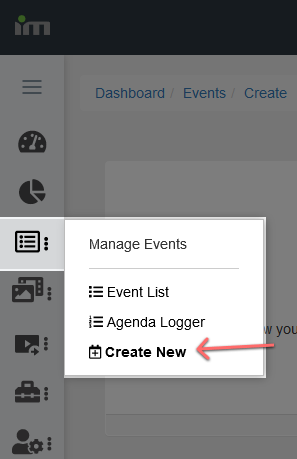
The Three Steps of Creating an Event
- Encoder/Media Source Selection
You must first know whether or not your Event will be Streamed Live from your Encoder ("Live Event") or Uploaded from recorded media ("Event from Media").
For events that will be Live you will be given the option to Select an Encoder. If no Encoding sources have been created, you can do so on the /manage/encoders page.
- Event Details
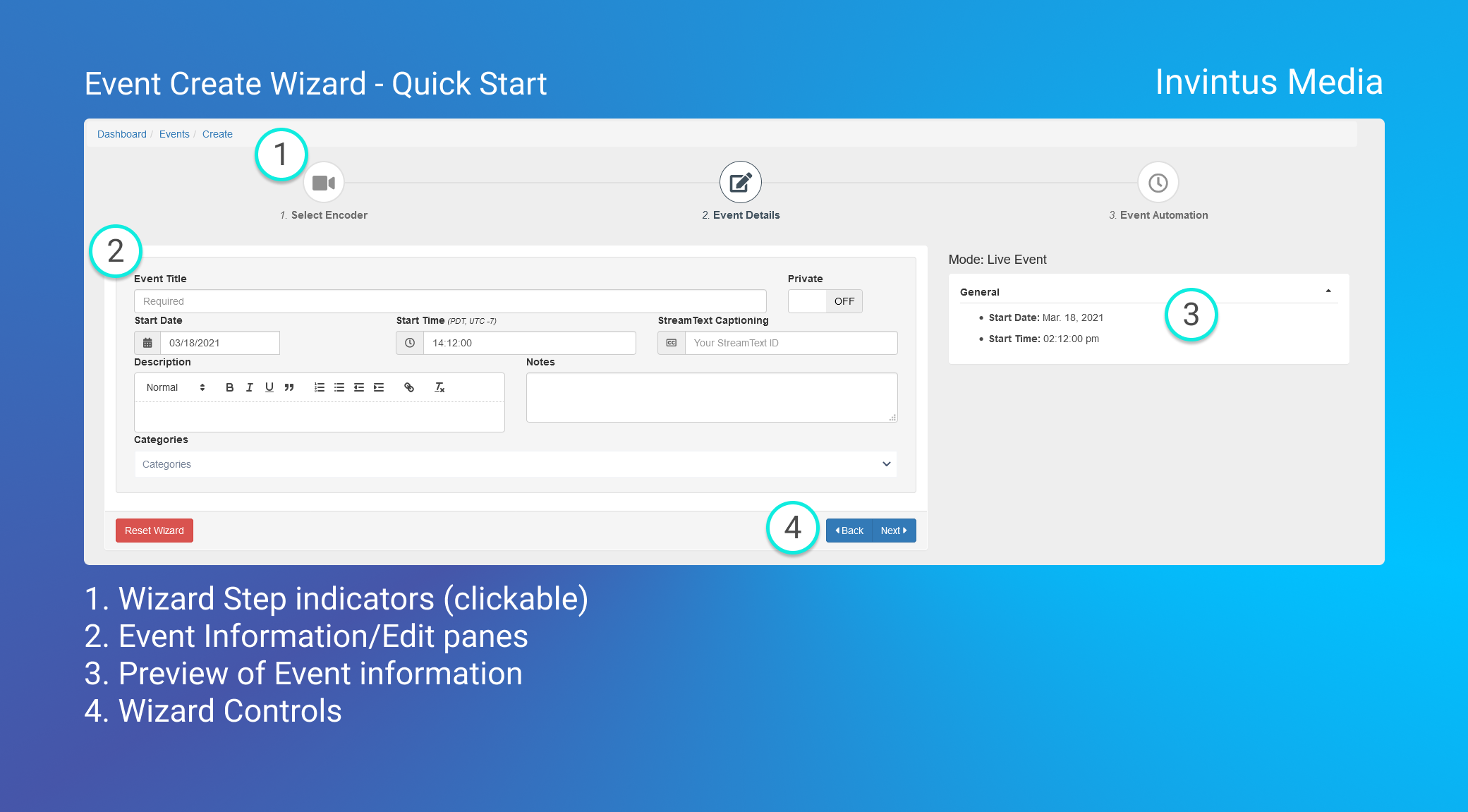
The Event details are the "basics" of your Event, and while we will go more in depth on each in later articles, there are three properties you must provide in order to create an Event.
- Event Title: This is the display name for the Event that will appear on your Player/Channel Listings
- Start Date: The Month/Day/Year the Event will occur
- Start Time: Time of day the Event will occur (24hr)
Note: New Events default to the Date and Time the Wizard was opened so while there will always be a valid date entered, you may have to adjust them.
- Automation
For those instances when you know your Encoder will be online streaming to Invintus, you can schedule Events to Autostart/Autostop. These form inputs follow the same formatting of the Start Date and Start Time.
Wrap up
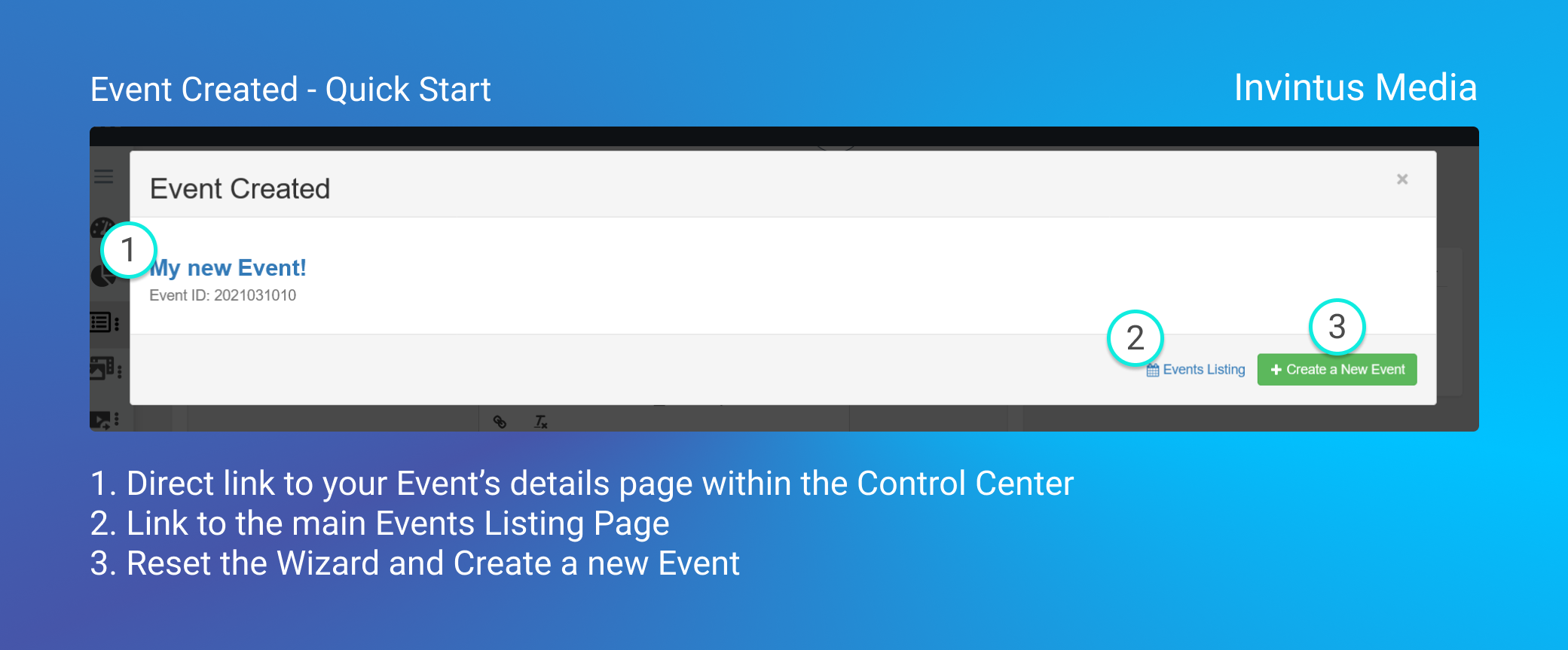
Once you've entered and selected all of the information you want for your Event, click-through to the Last step of the Wizard and click "Create Event"
Once this is clicked our system will generate it and a Modal will popup showing you a link directly to your new Event!