Overview
Extend the reach and impact of your events by simulcasting to your social properties. With Invintus, each of your events can be streamed to up to six different Social destinations simultaneously, including Facebook, Youtube, Twitter's Periscope, Twitch.tv, or any other rtmp-based streaming server.
Social simulcasting is setup on an individual event-by-event basis. Ideally, these simulcast destinations would be setup prior to the start of your event. However you can also assign them while the event is already live on the Invintus platform.
Please Note: Like all Third-party applications, social destination User Interfaces, Terms and Conditions, etc. are all subject to change so what you see in the Screencaptures below may not reflect the up-to-date methods of going live on their services.
This document last updated: August, 2021
Creating a Target Destination on your Event
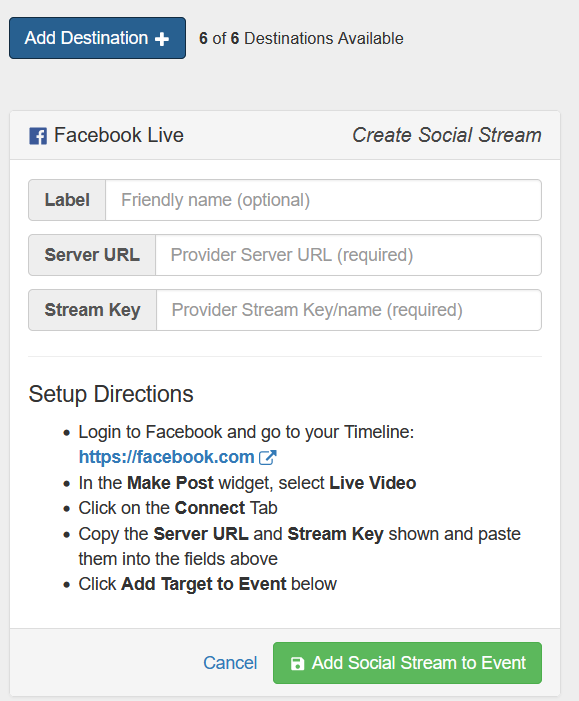
To begin simulcasting to desired social site, you will need to create at least one destination for your event. To make a "Destination", go to the "Social Live" tab in your Event's detailed view, and:
- Click "Add Destination"
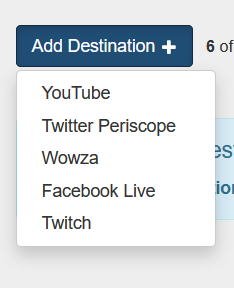
- Select the Destination from the dropdown
- Go to the Social site to get the information needed for us to Stream to them (each described below)
- Click "Add Social Stream to Event"
Youtube
For streaming to Youtube you must already have created an approved YouTube Channel. If you do not already have a channel, you will first need to create your channel through YouTube and wait roughly 24 hours for approval.
How to Stream to YouTube
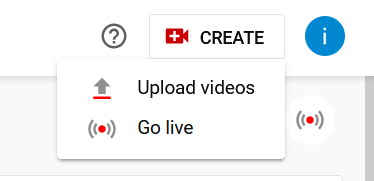
- Go to your YouTube's Channel Page. From here, click on the "Create" button at the top-right of the page.
- Select "Go Live" from the dropdown
This will redirect you to your main Streaming page, and show you two options:
Go Live "Right Now"
Go Live at a "Later Date"
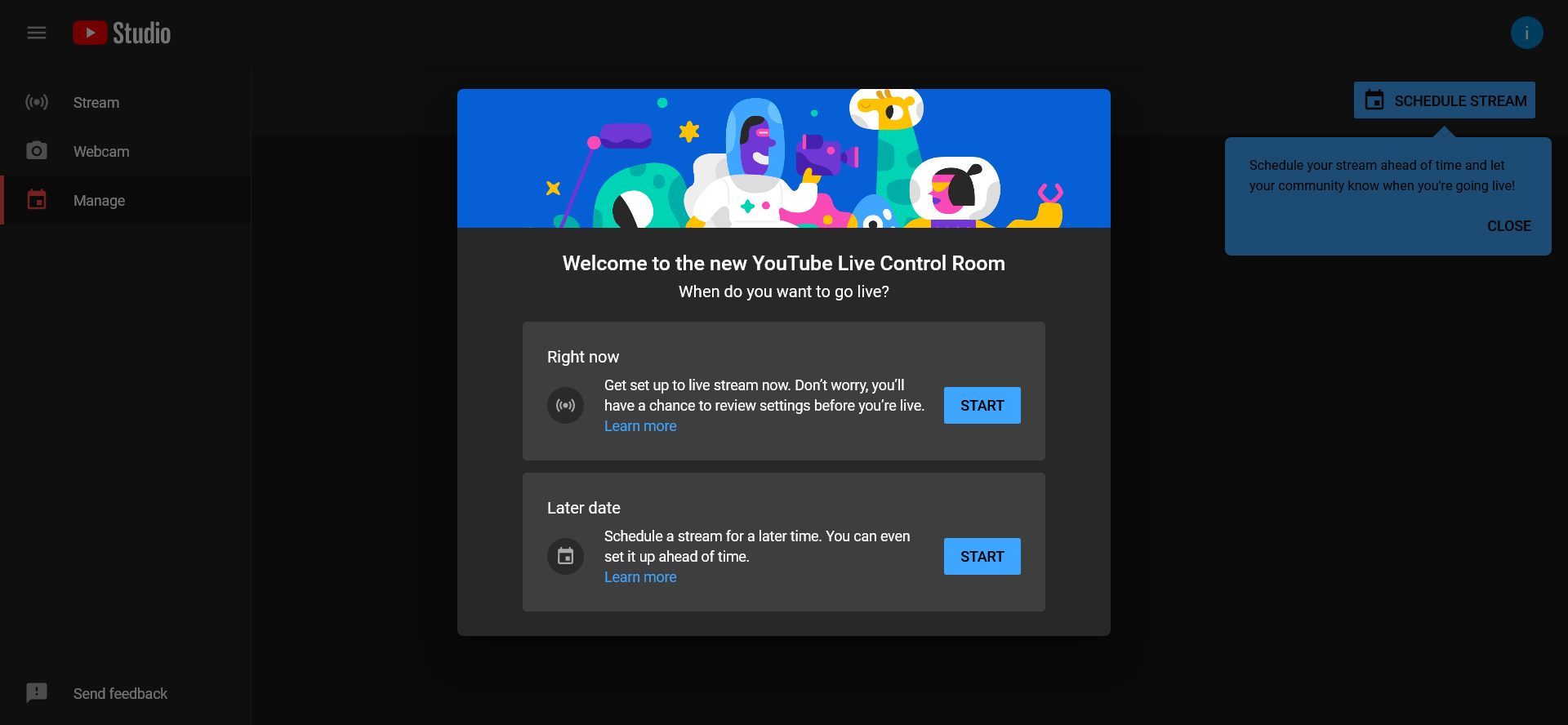
Select the one that suits your needs, then another step will pop up: "Pick the type of stream to begin." Here, select "Streaming software".
- This will bring you to your Stream Settings page. Here, you'll need the following for Invintus:
- Stream Key (typically auto-generated)
- Stream URL
In Invintus we call these "Server Key" and "Server URL" (the names are interchangeable)
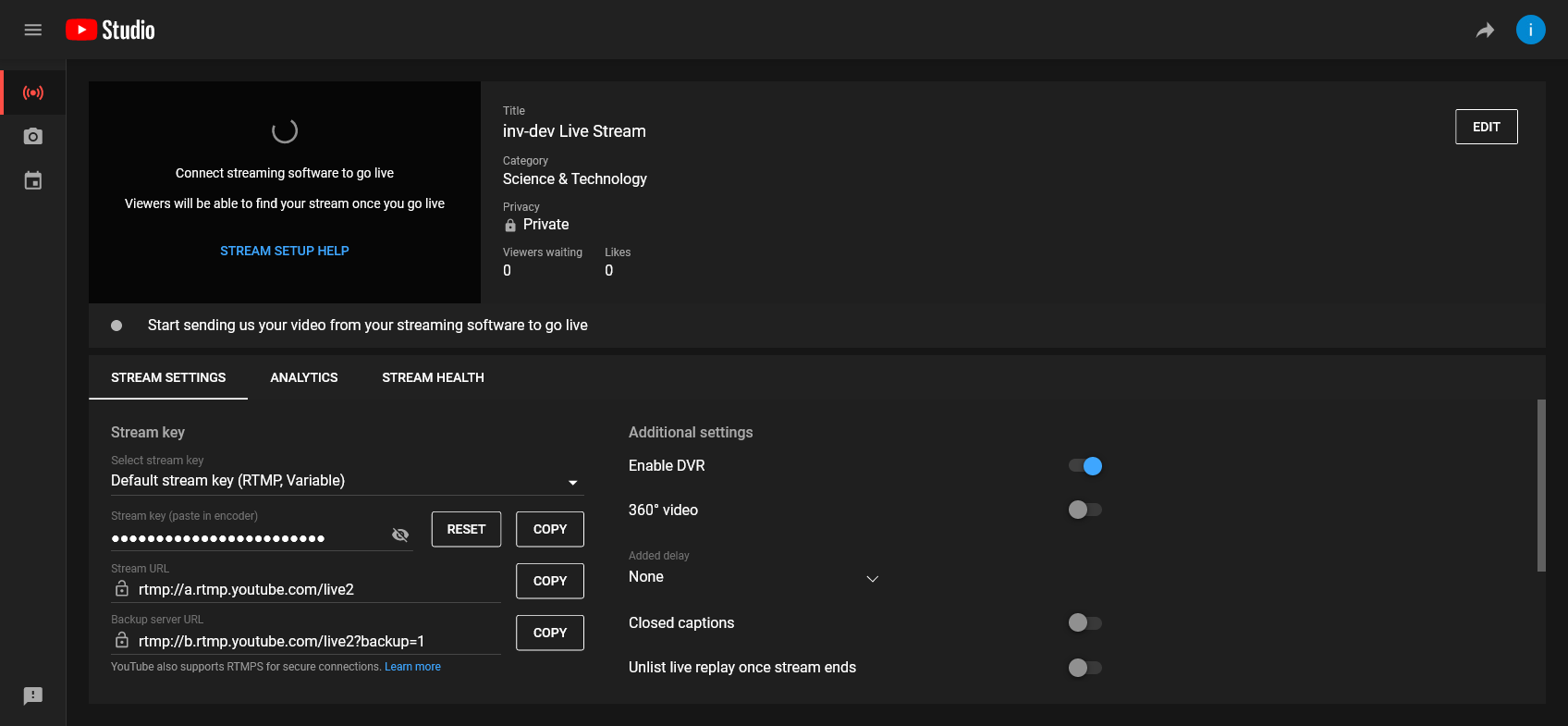
- Once you have these, you'll simply copy/paste them into your Social Destination as created in the Creating a Target Destination on your Event section above.
https://www.facebook.com/live/producer
A Facebook Account is required to go live on that platform.
How to Stream Live to Facebook
In order to go Live to your Feed on Facebook, you can either use the link above, or, from your Wall/Feed click the "Live Video" for a new post which will redirect you to the Facebook Live Producer page.
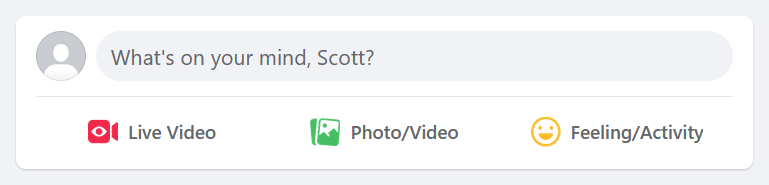
From this page, click on the "Use Stream Key" found in the "Get Started" UI element.

As with YouTube, this will give you the pertinent keys to input into Invintus.
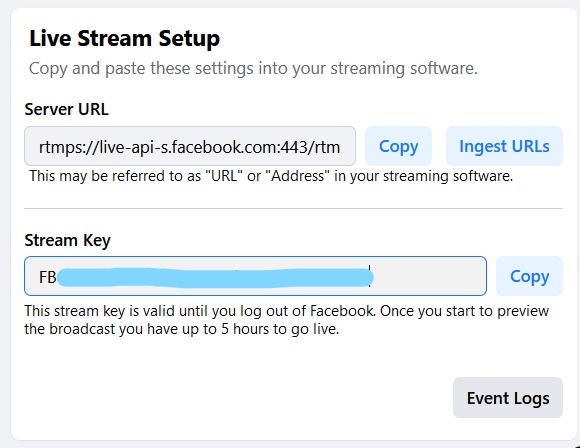
Take these, and, referring back to the initial steps in Creating a Target Destination on your Event, use that Method to create a new Stream Target.