
With Control Center version 2.28.0 we've introduced new Views for navigating and managing your Events: Calendar view, Table view, Grid view, Expanded (or, Legacy view), and a Slim view. Event listings can be accessed here: https://controlcenter.invintusmedia.com/events.
Each of these can be switched to from the Events page without needing to reload the page.
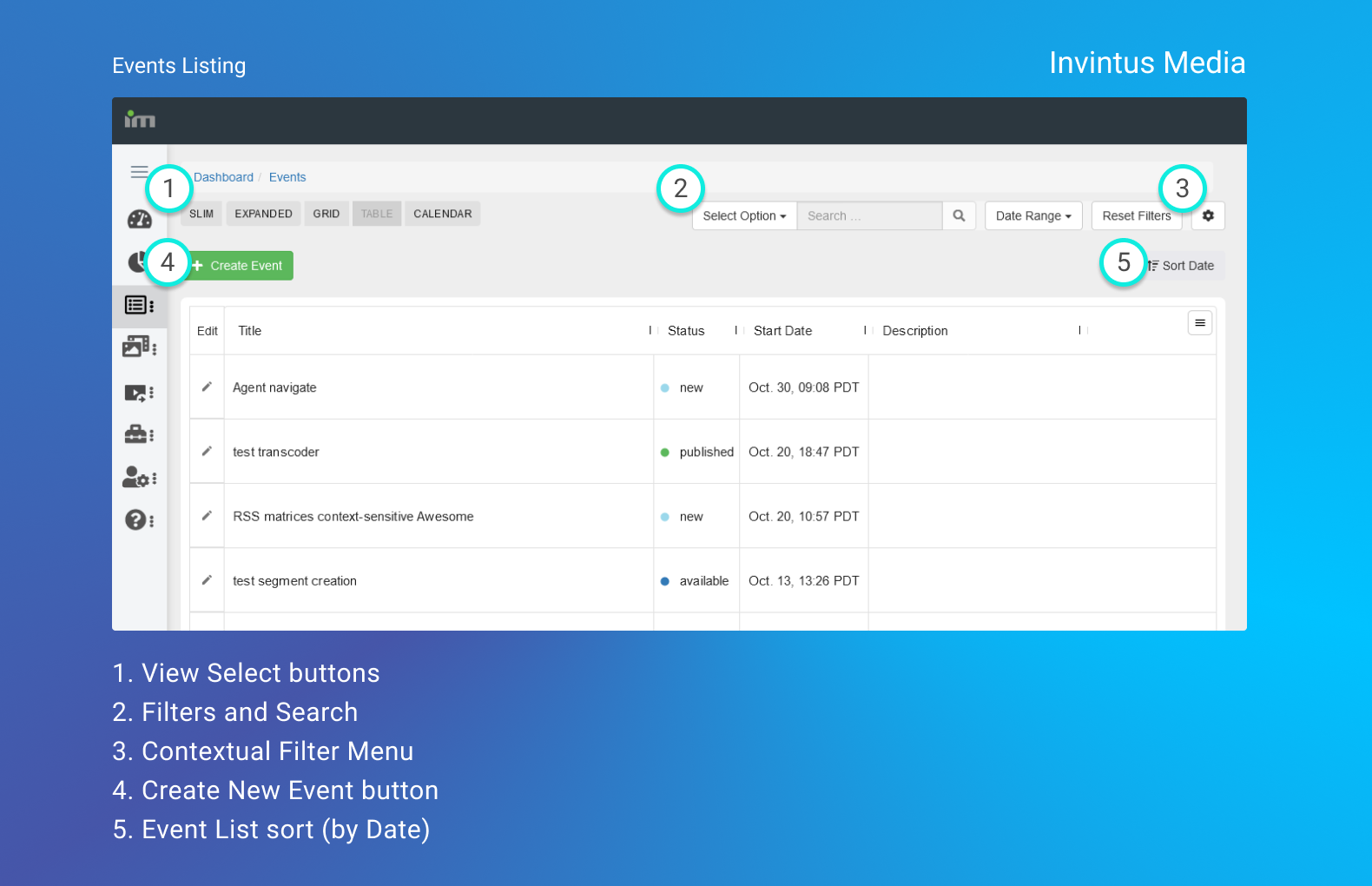
Note:
Throughout each view we use the same Coloring we have typically used for Events when it comes to Event Statuses: Green is "Published", Red is "Live", Blue is "Available", etc.
Contextual Filter Menu
While on the Events listing page, you can open the Contextual Filters menu to customize the your view. These filters are denoted by a "Gear" icon found on the top-right of the page alongside the other Filters. In this Menu you will find:
- Per-page Count: How many Events to show Per page
- Live Events Only: Will show only Live Events
- Private Events Only: Will show only those Events which you have previously marked as Private
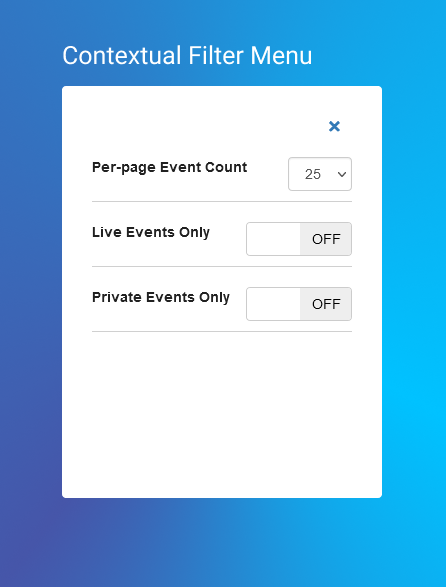
Note:
You cannot see the Filters or Contextual menu while you are the Calendar view is active.
Slim View
The Slim View is a "slimmed" down version of the Expanded (legacy) view and is the default view when you first come into the Control Center. It is a faster, more responsive listing that will allow you to get a quick overview your event schedule. On subsequent visits, the Control Center will default to the last view which was in use when you logged out of the Control Center.
Each Event's title bar appears just as it has before, and you can Expand each Event one at a time by clicking on the Event's title bar. By default, the first Event is expanded.
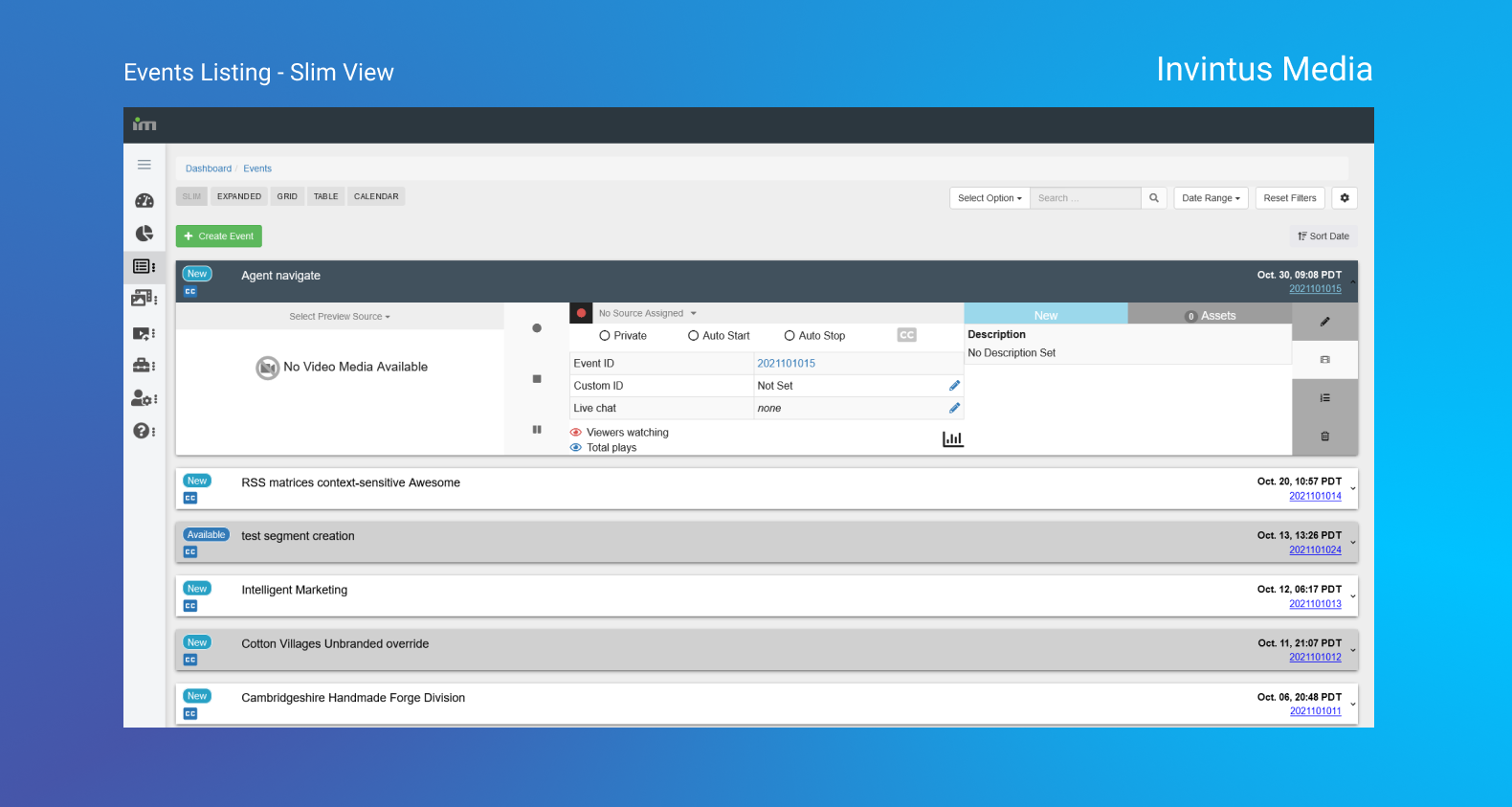
Note:
You can open the Event's detailed view by clicking on the Event's Event ID (hyperlinked on the right side of each Event)
Calendar View
This view is much like what you'd see with any software-based planning Calendar (e.g. Google Calendar, native Calendar applications, etc.), and can be adjusted to show certain date ranges on the fly.
Calendar Navigation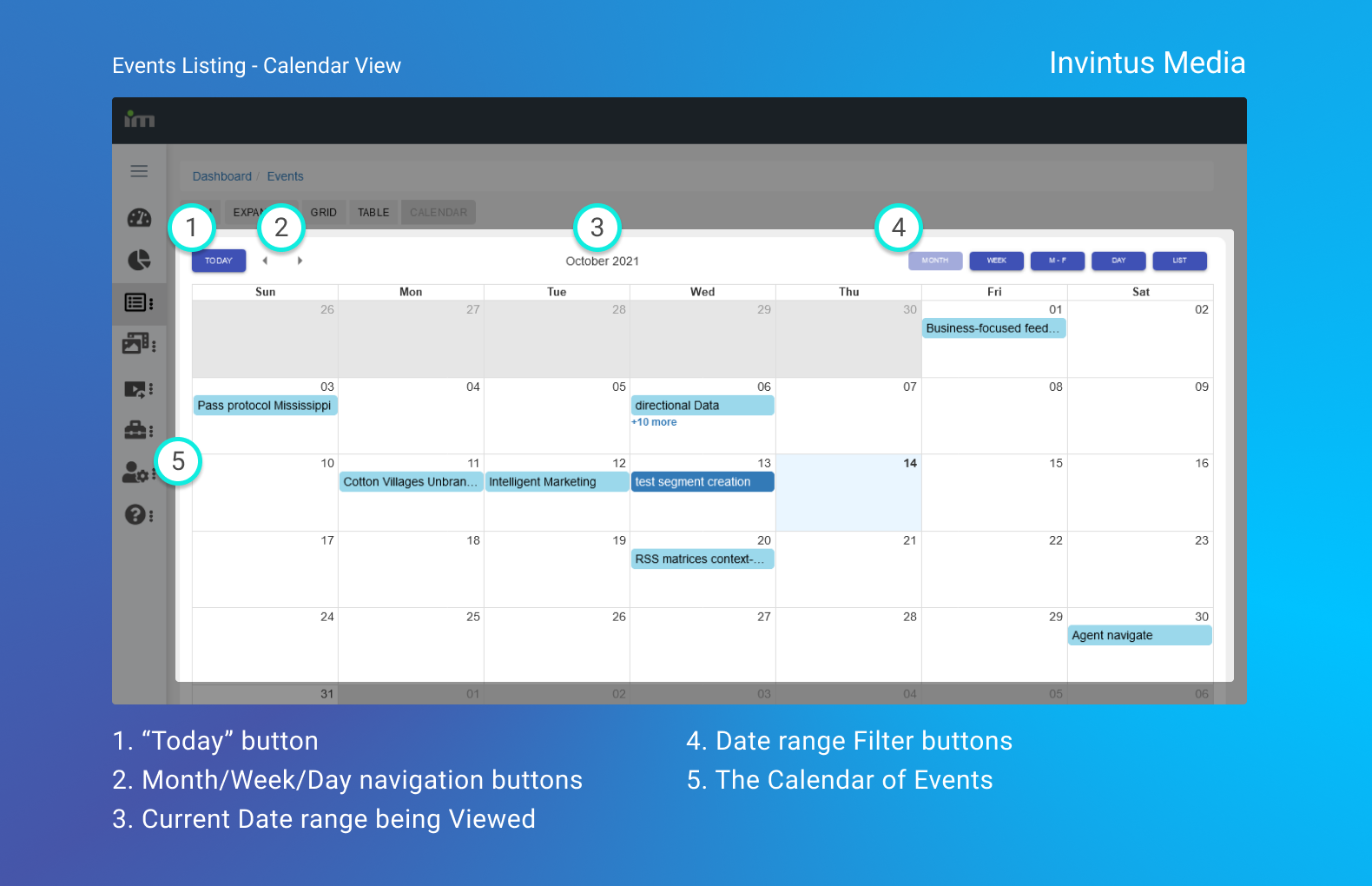
There are Four elements to the Navigation:
- The "Today" button
If you navigate away from the current range, this button will always bring you back to the current Month/Week/Day depending on which filter you have active.
- Month/Week/Day navigation buttons (Arrows)
These will navigate you Backward (left arrow) or Forward (right arrow) in time.
A Label denoting the current active Date Range
Date Range filter buttons
These narrow the filter range as need be. The "List" option shows all Events
Note on the "List" view:
The List view will always default to a date range of Today +30 days
Table View
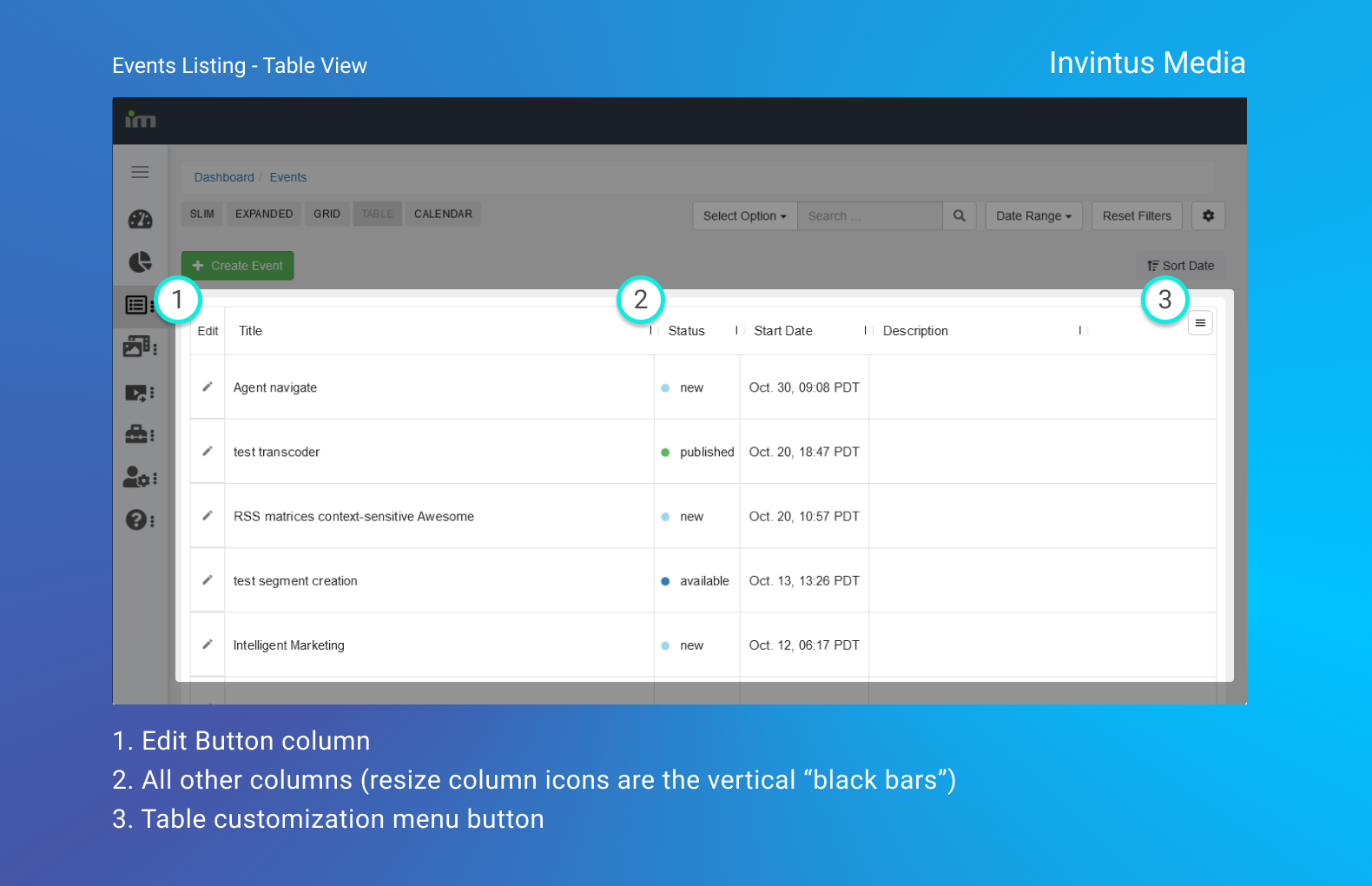
The Table View is an Excel-like layout with customizable Columns.
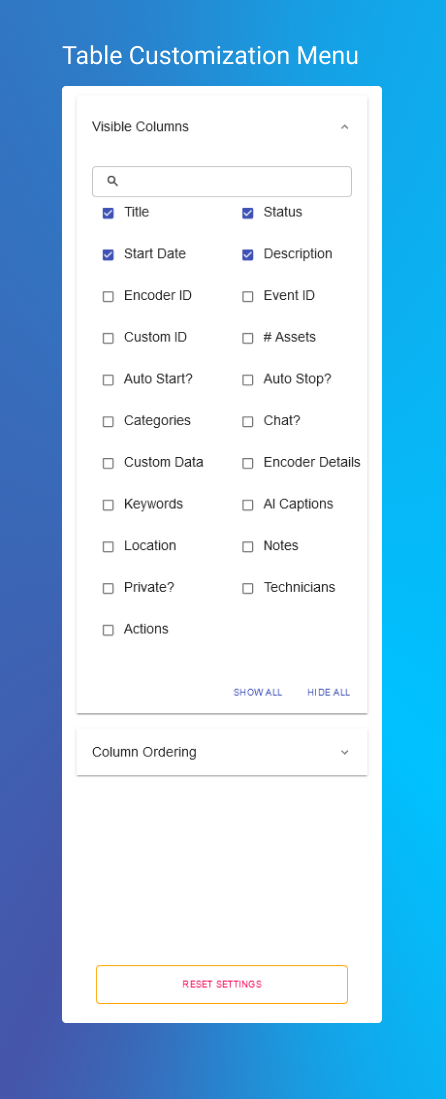
In order to customize which columns you see/don't see, click the three-bar/hamburger Menu icon on the top-right of the view. Within this menu you can also change the Column order and Reset the columns to the default ones by expanding the "Column Order" menu and Dragging/Dropping the column labels seen within.
Additionally, you can Resize column widths by clicking and dragging the column Resize icons found in the Top row of the Table.
In order to Edit an event, use the "Pencil" icon on the far-left column of the table (which cannot be reordered into another position).
Note:
Some options within the "Visible Columns" have a question mark "?" at the end - "Chat?", "Private?", etc. These Event settings are On/Off and therefor show a Circle icon which is White when "Off" and Green when "On" within the Table.
Grid View
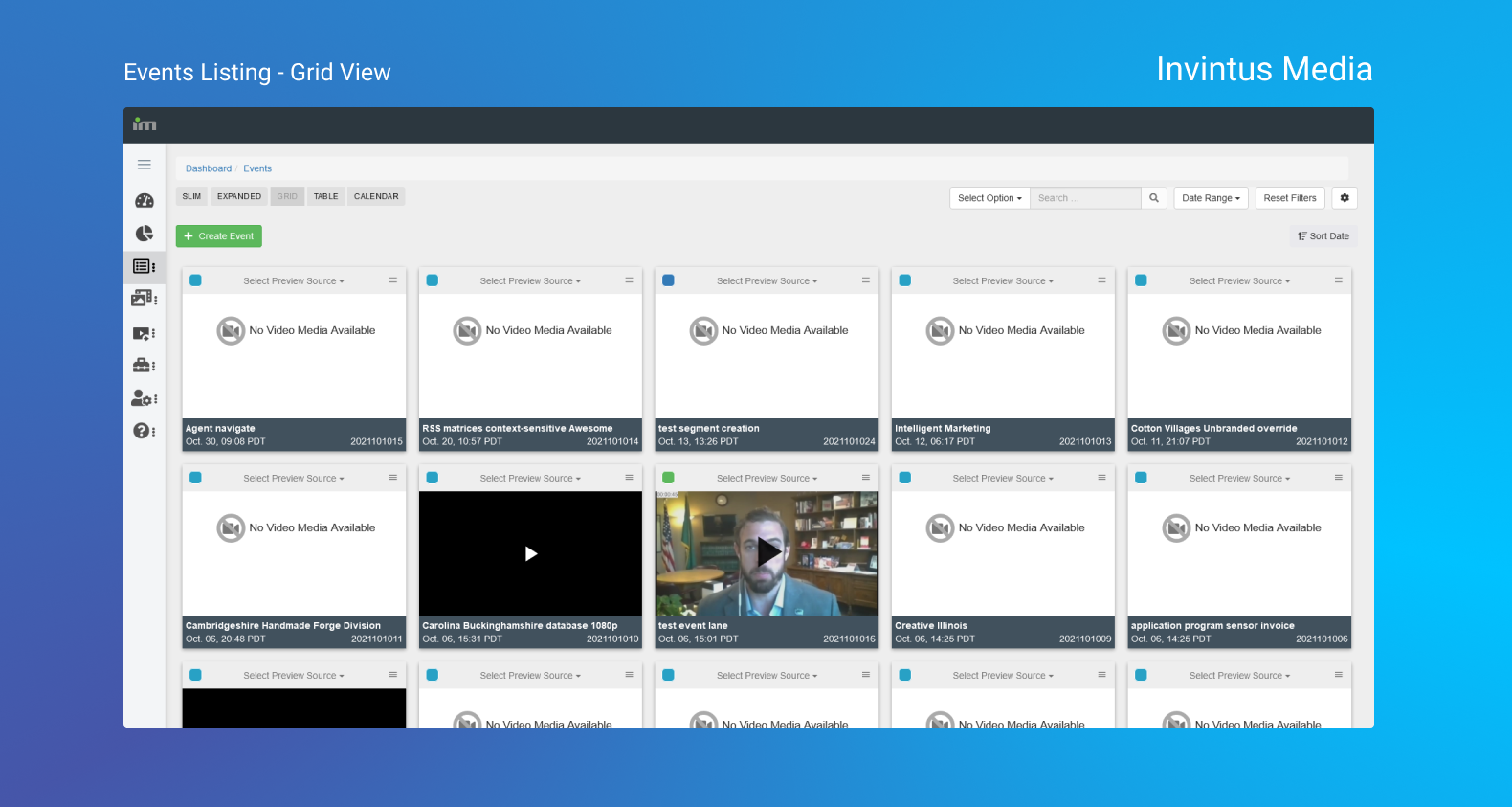
The Grid view is a left-to-right, top-to-bottom listing of your Events; the primary use for the Grid view is to monitor multiple Live events and their streams at once.
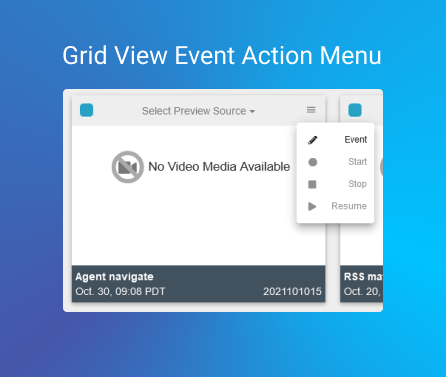
Within the Grid view, you can perform two actions: Select which Preview Source you want to view for an Event, or after Clicking the Menu icon on an Event, open the Event in the Detailed view, Start, Stop, Pause, or Resume a paused event
Expanded View (Legacy)
This is the standard view that Invintus has provided since version 2 was released.