
URL: https://controlcenter.invintusmedia.com/manage/encoders
Within the Live Video Sources section of the control center, you are able to either specify new encoders / live video sources you may setup to send your live stream to Invintus, or viewing/managing existing encoders / live video sources you have already previously setup.
Requirements
- A hardware- or software-based Media Encoder
Create an Encoder
The process of setting up a new encoder to stream live video to Invintus includes two distinct steps:
- Setting up a new encoder instance within the Invintus Control Center which will establish the required metadata for each unique individual encoder you may use to send live video to our platform; and
- Providing you that same metadata for you to then input into your physical/digital video encoder so it may connect and stream to our system.
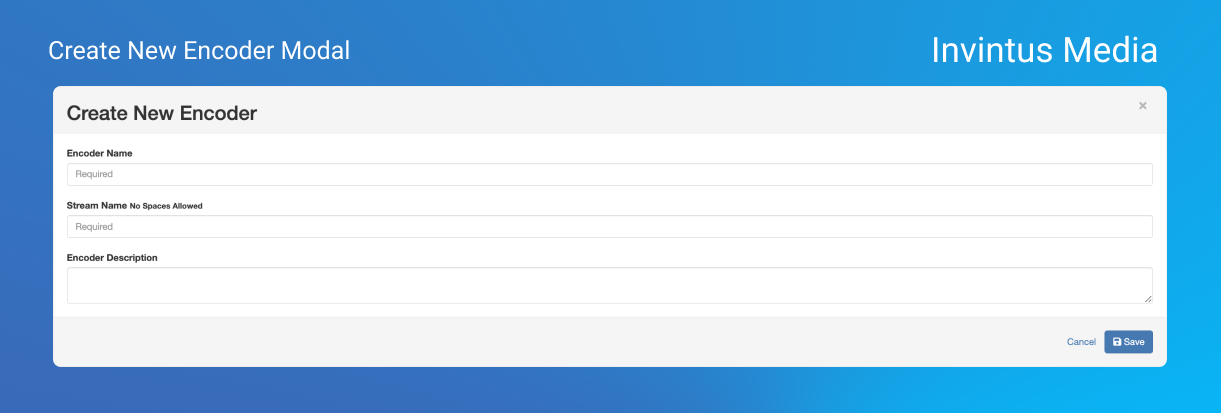
When Creating an encoder, an Encoder Name and a Stream Name - both of your choosing - are required. You may also provide a brief Description.
Encoder Name: This is a friendly name to help you identify each individual video encoder within your organization
Stream Name: This is a system-wide unique identifier our system uses to identify each unique video encoder.
Note: Currently we do not support Editing/Updating the Stream Name. To change it you will have to delete the existing Encoder record (where applicable) and create a new one with the desired Stream Name.Stream Name rules:
- Alpha-numeric
- upper or lowercase letters
- hyphens ("-") allowed
- all one word
Examples:
my-test-Encoder-5OBSConnectionTeradek1
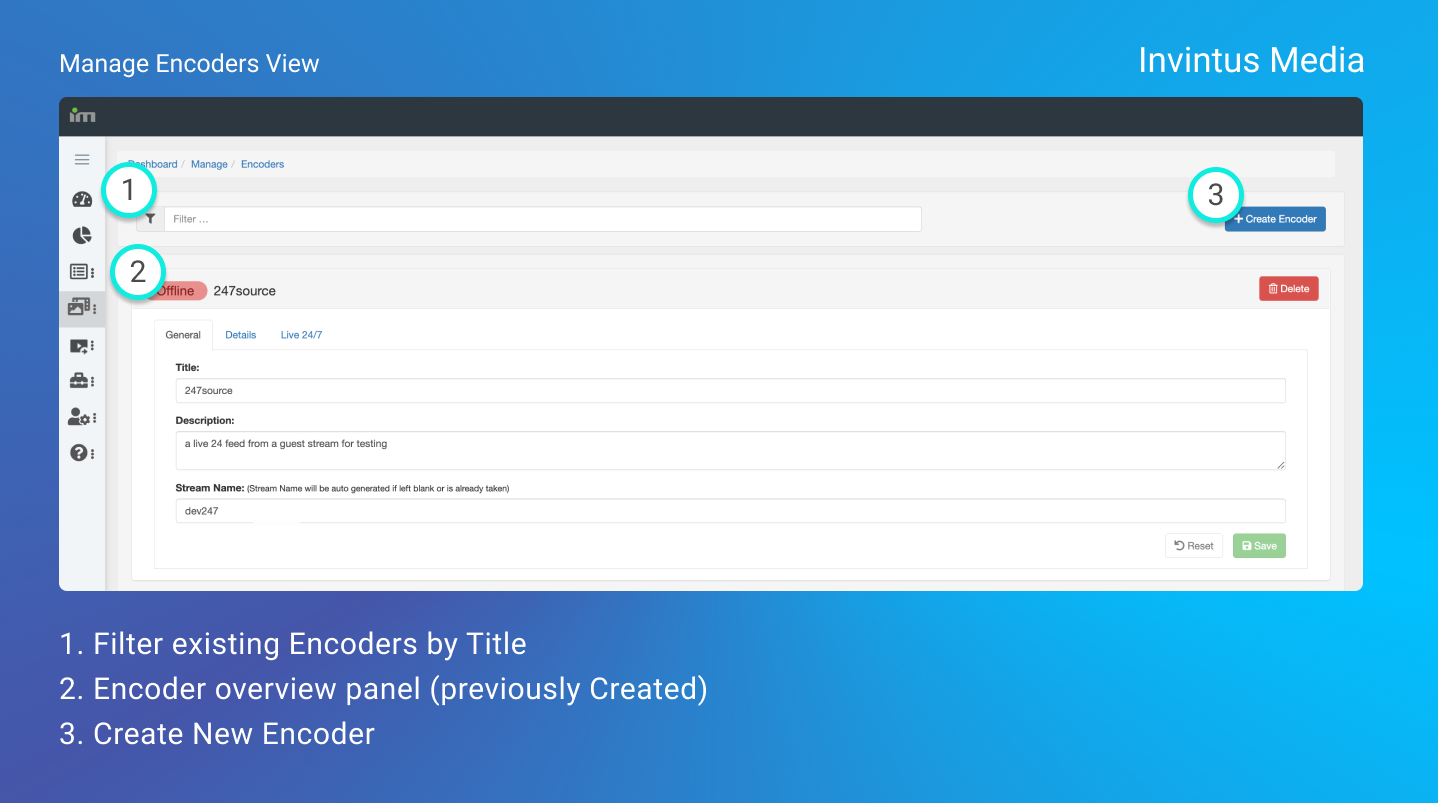
Encoder listing
This is a list of every Encoder you've created.
General Settings
These are the same values you assigned when Creating the Encoder.
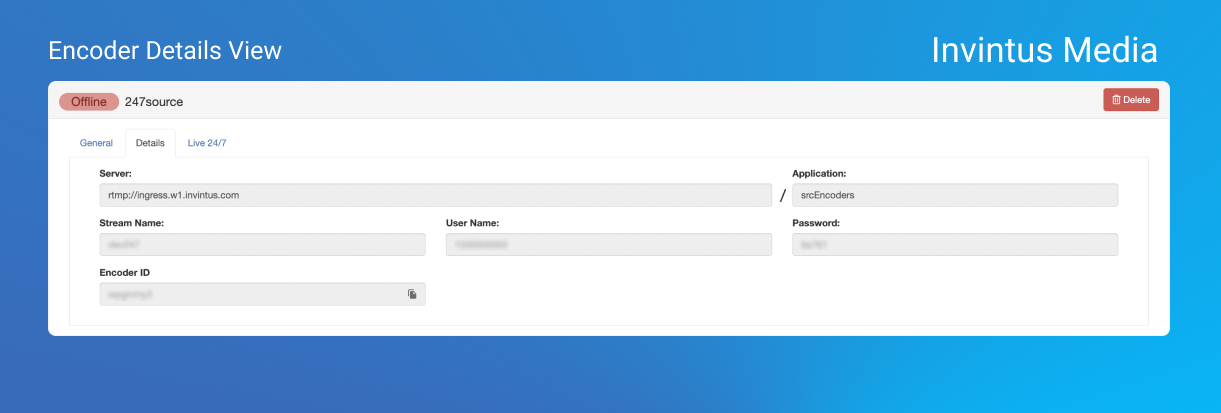
Details
This is where you retrieve the URI to input into your physical or digitial Encoder's settings. The three main elements of this are:
- Server URL:
rtmp://ingress.w1.invintus.com - Application Path:
srcEncoders - Stream Name: This is the stream name you chose when creating the Encoder
Additionally, you may also input the automatically generated username/password.
IMPORTANT:
For some encoders, you may have to break this URI up into two parts: The Server Address and the Stream ID (or Stream Key).
- Server Address:
rtmp://ingress.w1.invintus.com/srcEncoders- Stream ID/Key:
my-stream-name
Example: Setting up OBS Studio to Stream to Invintus
OBS Studio is a freely available and Open Source Software-based Encoder.
Below you can see how your Invintus Encoder Source Stream settings relate to the fields required by OBS Studio.
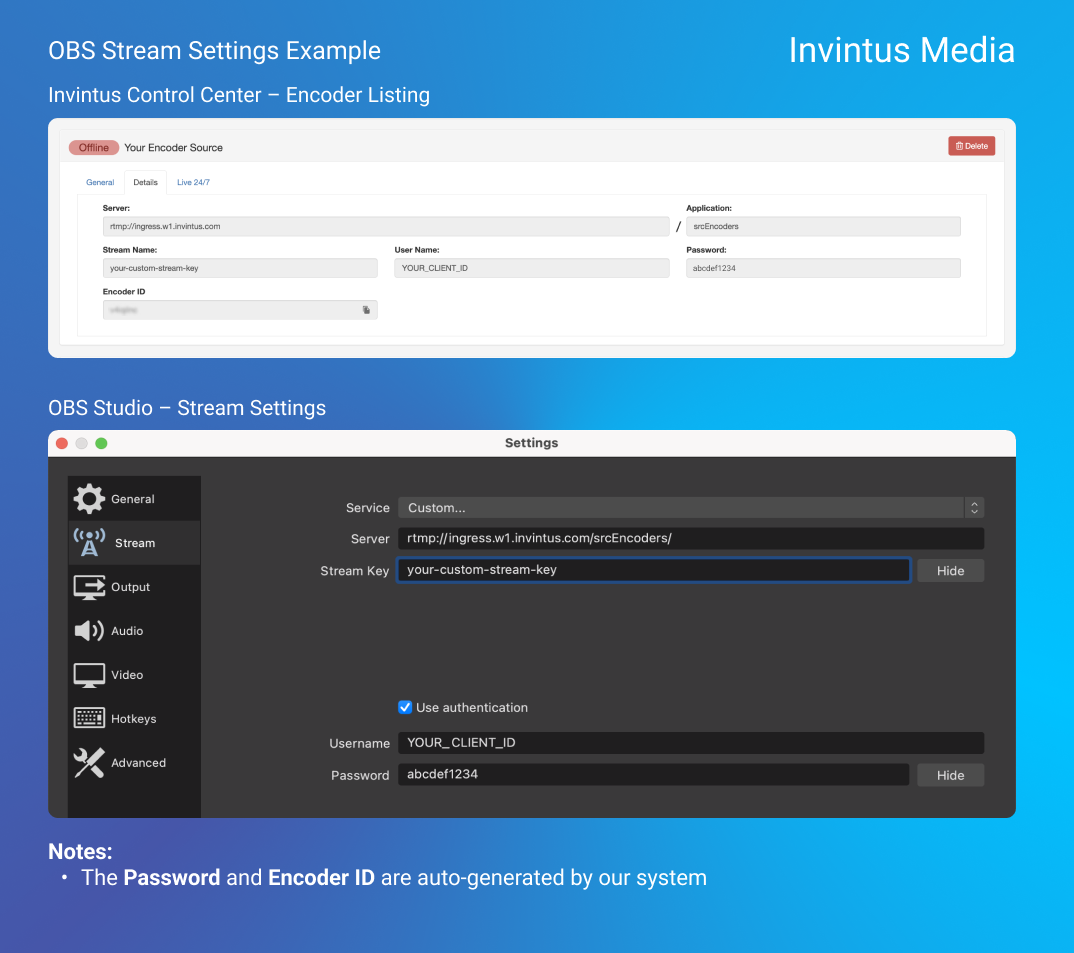
Note: When creating your Encoder Source Stream, you can choose any Stream Key/Name you like so long as it isn't already taken.Live 24/7 (Persistent Stream settings)
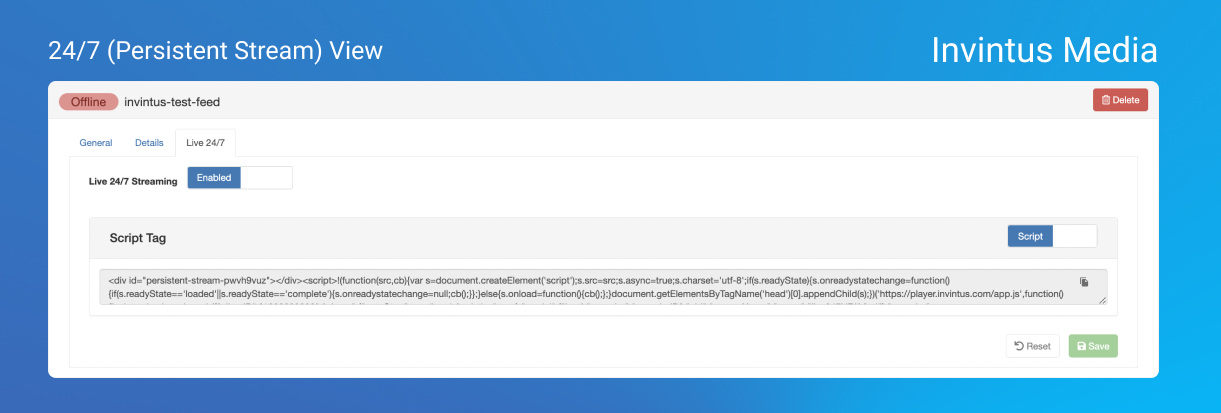
This view is for establishing an Encoder as a persistent, never ending stream (much like a TV channel).
To Enable this feature for your stream, click the toggle button from Disabled to Enabled.
Because 24/7 Streams are not like Event streams, you have to embed a new Video Player instance somewhere on your Website. To do this, copy the code snippet from the "Script Tag" pane and paste it on a webpage on your Website.
Note:
Please note there is an additional cost for live 24x7 streams. Please contact your account representative for pricing details if you are interested in this option.