
Official Zoom Documentation:
Requirements (Zoom)
Note:
Please refer to the official Zoom documentation (above) when establishing your stream as Zoom requires different licenses based upon the stream type (Meetings vs Webinars)
In order to stream to Livestream your Zoom meeetings to invintus, your Zoom License must be either:
- Pro
- Business
- Education
- or Enterprise account
Requirements (Invintus)
URL: https://controlcenter.invintusmedia.com/manage/encoders
These three steps are required before streaming from Zoom to your Invintus platform account:
- One-time setup of an encoder within the Invintus Control Center to generate the Stream URL to enter within your Zoom account (please refer to Encoders / Live Video Sources for complete documentation)
- One-time setup within Zoom to establish the link between Zoom and your Invintus encoder
- Custom selection of live streaming for each Zoom webinar you'd like to stream
Zoom Setup
Zoom Settings (One Time Setup):
Sign in to the Zoom web portal as an administrator with the privilege to edit account settings.
Click Account Management and then select Account Settings.
Click the "Meeting" tab.
Under "In Meeting (Advanced)", verify that "Allow livestreaming of webinars" is enabled.
Select the "Custom Live Streaming Service" check box.
- From the Invintus Dashboard, find your Encoder's "Stream Key"
- Cut/Paste following into the box:
- Enter the Stream URL:
rtmp://ingress.w1.invintus.com/srcEncoders - Enter the stream key: [Your Stream Key // Stream ID]
- Enter the Stream URL:
Click "Save"
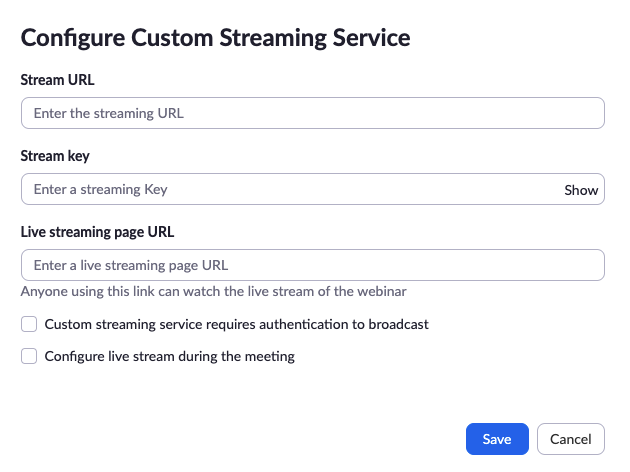
For individual meeting webinars (For each live meeting):
In Zoom:
- Schedule Webinar first
- After scheduling, click on the Webinar Title you entered (don't click "start" or "edit", just the title)
- Near bottom of the webinar details screen, click "More"tab
- Click "Configure Custom Streaming Service"
- Enter Stream URL:
rtmp://ingress.w1.invintus.com/srcEncoders - Enter Stream Key: [Your Stream Key / Stream ID]
- Enter Stream URL:
- Click "Configure Custom Streaming Service"
In the Invintus Control Center:
- Setup the Event in advance with date/description/etc.
- Set encoding source to the same Encoder you used for the precious step
- On the day of event, after the Zoom webinar has started, the Encoder source should be green
- Start the Event in the Control Center
Further Documentation
Please refer to the attached document – "Zoom Best Practices" – as to how best to present yourself and your content over Zoom.