Event Automation and Event Duration
Each Event and every Client Package tier supports Auomating an Event's Start and Stop time. When either Auto Start or Auto Stop are toggled on, the Live Stream will begin automatically so long as the Encoder assigned to the Event is feeding a Video Stream to our system.
Best practices
Pre-roll and Starting Paused
To ensure your Event goes Live at the intended time, we recommend at least a 5 minute Pre-roll (Going live prior to the Event's start). This helps prevent issues where our System may be scaling resources to meet Live Streaming demands.
On average, our system takes 3 to 5 minutes to start a Live Stream on your Event. In conjunction with the Pre-roll as defined below, we also provide a "Go to Break After Start" feature which will start your stream in a Paused state, allowing you to switch over to Live immediately when you need it to without waiting for our system to scale.
Glossary
Start Date Time
Event Details: General Tab
The Start Date and Time dictates when the Event is scheduled to Start.
Estimated Runtime
Event Details: General Tab
Default value: 1 hour (
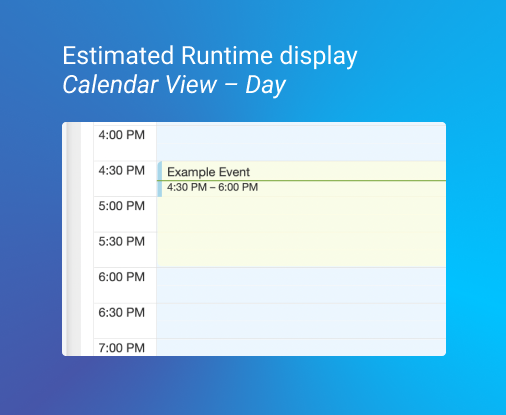
01:00)The Estimated Runtime is an estimation of the Event's duration, and its purpose is to show users in the Control Center how long the Event will be live for within the Calendar Event's List view (see attached picture)
Note:
This value is never shared on the User-facing viewing portals such as our Embedded Player or Channel Listings
Auto Start and Auto Stop Toggles
Event Details: Automation Tab
Default values:
OFFThese will tell our system to either Go Live or Stop a Live stream at the specified times:
- Auto Start references the Start Date/Time fields (in the General Tab)
- Auto Stop references the Stop Date/Time fields (in the Automation Tab)
Preroll
Event Details: Automation Tab
Default value:
NoneA "Preroll" is a Select input which lists 1 minute increments from 1 to 30, and if a value is selected while Auto Start is toggled ON, the Event will go Live by the selected option of minutes before the corresponding, user-provided Start Time.
Go to Break After Start
Event Details: Automation Tab
Default value:
OFFIn certain cases users may want to start a Meeting in a "Paused" (i.e. an "On Break") state. This allows you to record media in our System withough presenting it to the user immediately.
Note:
We do not provide a way to Automate of coming out or going back into state from a Break/Paused after the Event gone Live; Control Center users/technicians will have to perform this action manually.
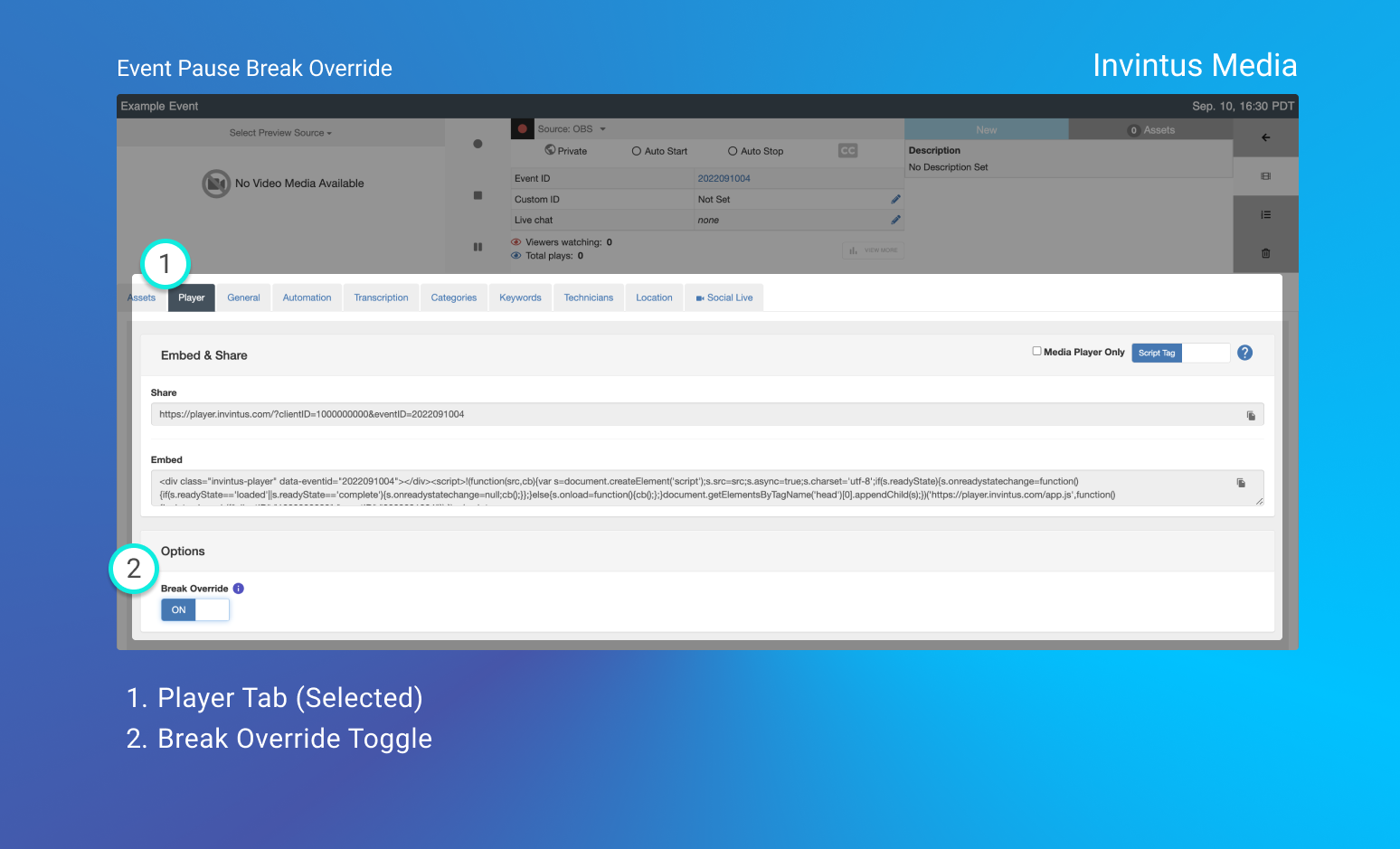
Break Override
Event Details: Player Tab
Default value:
OFFIn certain cases users may want to keep streaming your Event while it's in a On Break / Paused state (e.g. when you have technicians Streaming a video slate). You can use the
Use Case:
The best use case for this option is when you want to track the Pause break events and have them appear on our Video Editor's interface.
Note:
This toggle is by Event, so everytime you will need it you will have to Toggle it ON for each new Event.
Reference Images
Event Start Date/Time and Estimated Runtime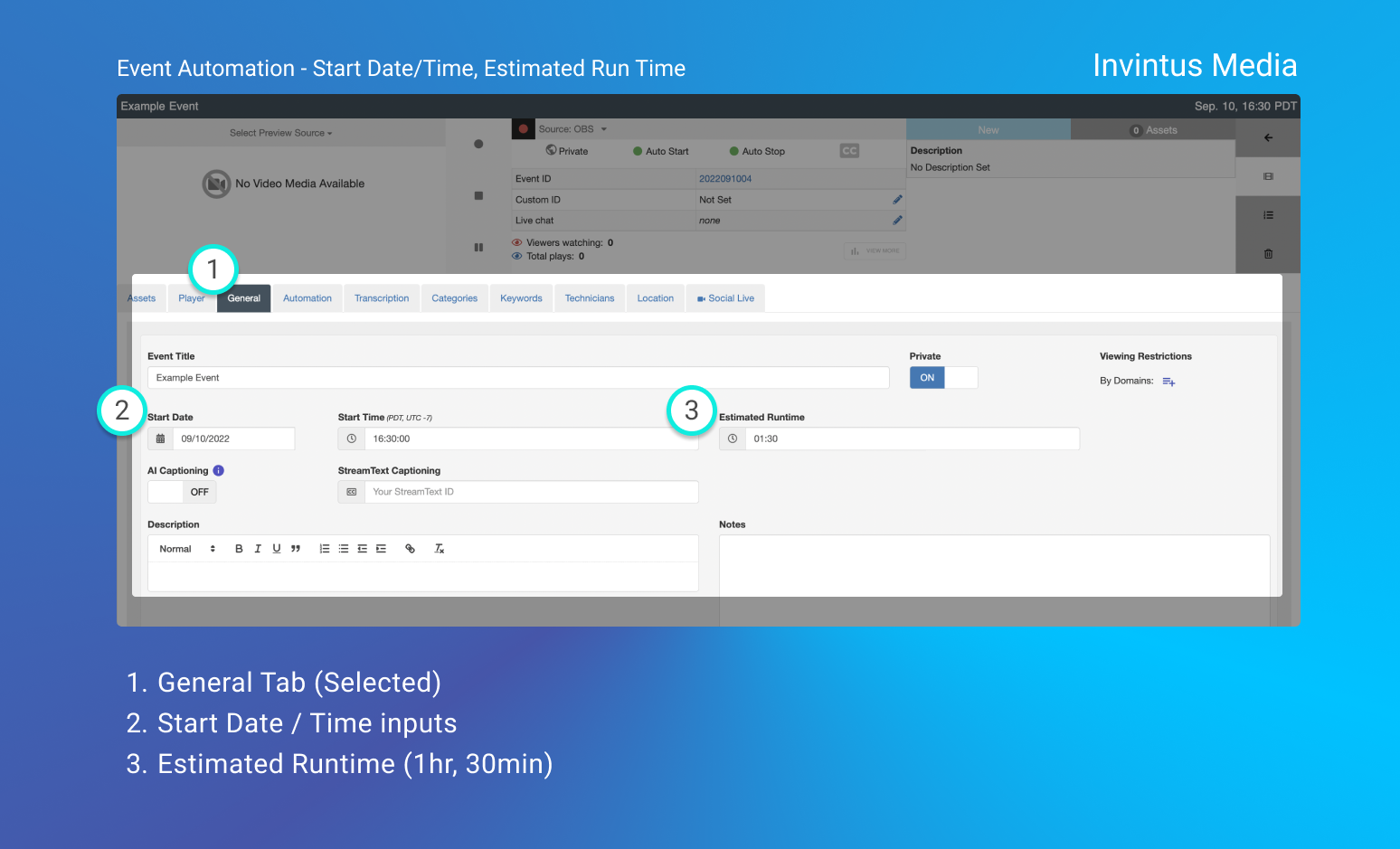
Event Automation Tab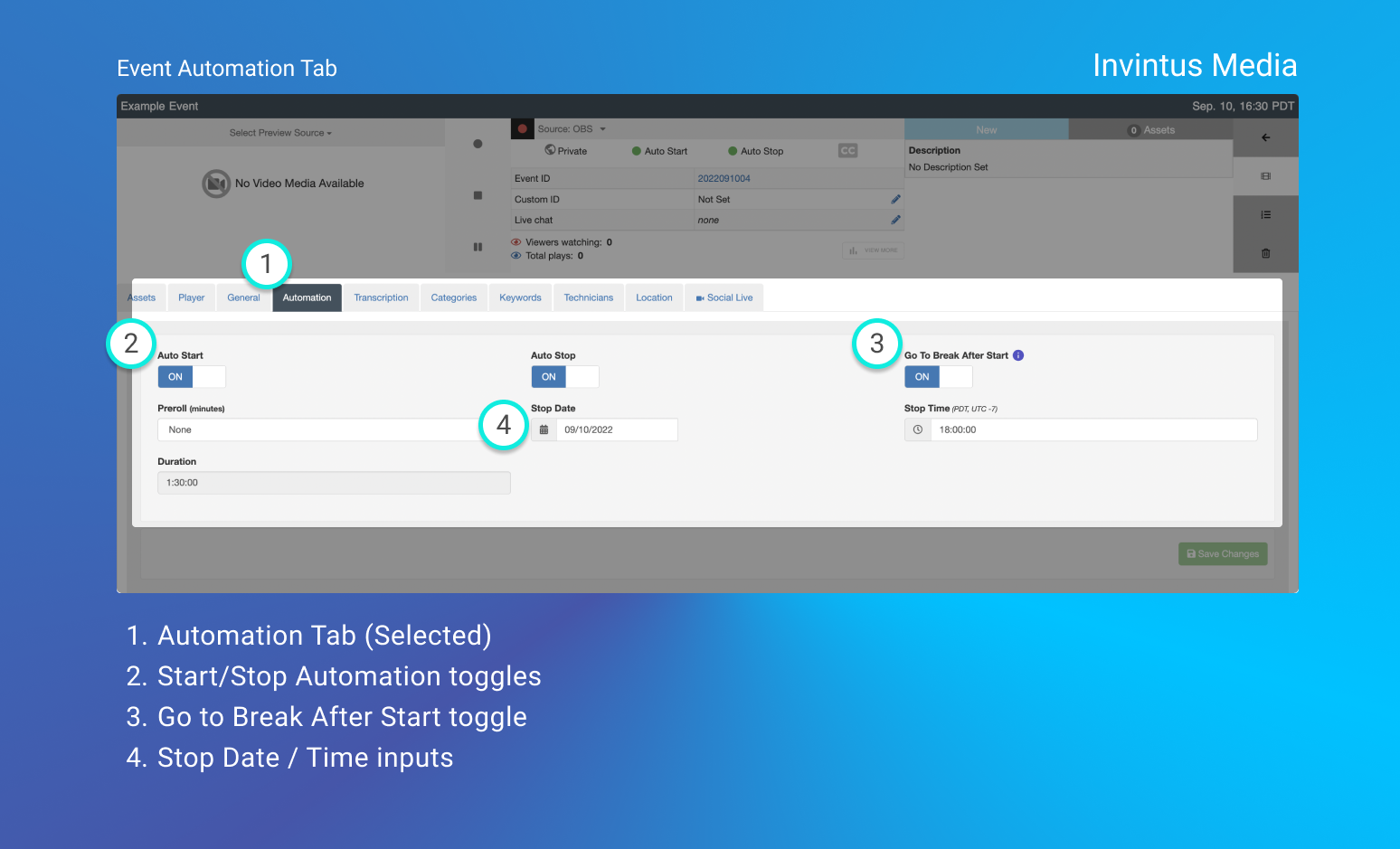
Pause Break Override